How to Create an Org Chart from Excel or CSV Automatically (2026)
TL;DR: If your spreadsheet has one row per person and a column that says who each person reports to, you already have everything an org chart needs. In SimplOrg, choose File → Import from file, drop in your .xlsx, .xls or .csv file, check the column mapping and click Import. The chart is drawn automatically. Free, no account, and the file is read in your browser, never uploaded.
The whole import, in real time: drop the file, confirm the mapping, done.
Most org charts start life as a spreadsheet. HR exports a staff list, someone adds a "Manager" column, and then the painful part begins: dragging boxes around in PowerPoint or Visio for an afternoon. That last step is the one you can skip. A list that says who reports to whom already contains the whole hierarchy; a tool only has to read it and draw it.
This guide shows how to do that with your own file, what the importer expects, and what to do when the result doesn't look right. If you'd rather build a chart by hand, see How to Create an Org Chart Online.
What Your Spreadsheet Needs
You need one row per person and a header row at the top. Beyond that, only two columns matter:
| Column | Example header | What goes in it |
|---|---|---|
| The person | Name, Full Name, Employee Name |
The person's name |
| Their manager | Reports To, Manager, Reporting Head, Manager ID |
The manager's name or the manager's employee ID. Empty for the person at the top. |
Everything else is optional: job title, department, employee ID. Extra columns you don't need can simply be ignored during import.
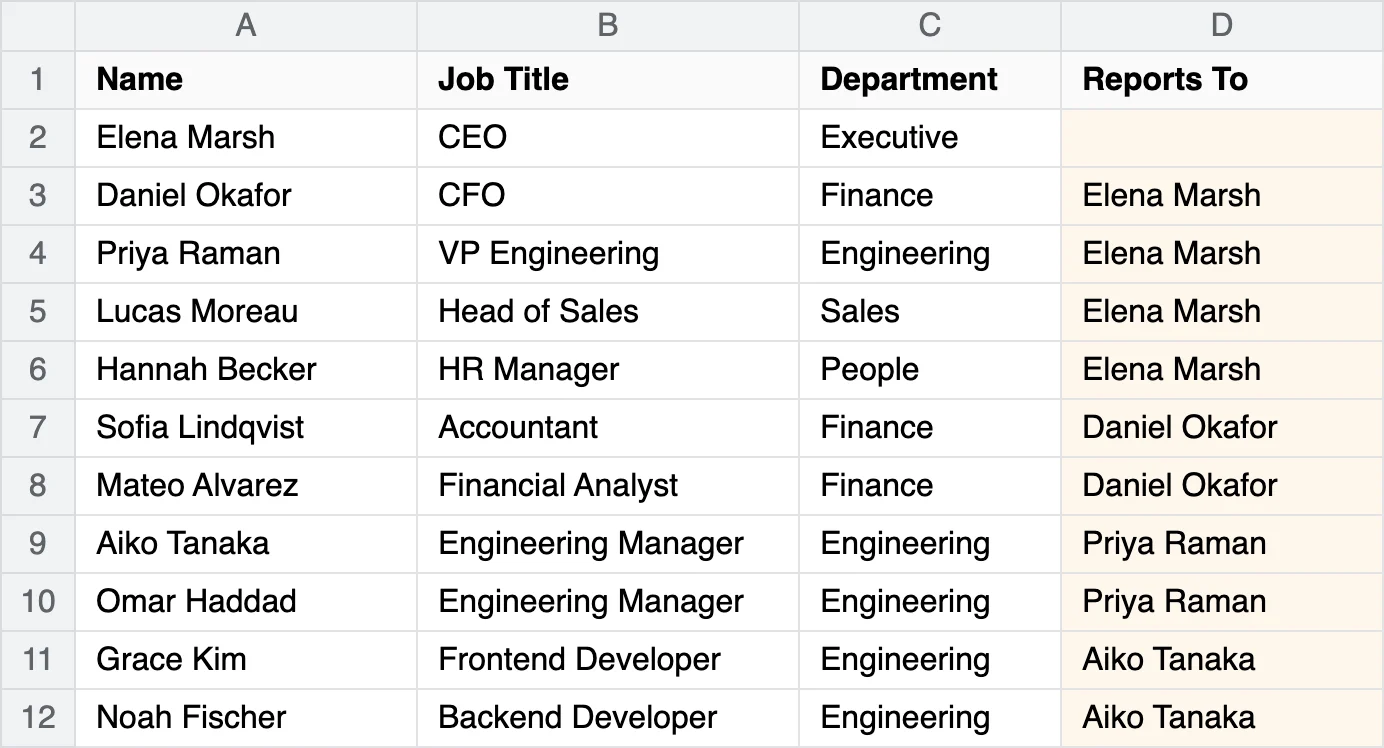 One row per person. The highlighted column is the only one that defines the structure.
Want to try it before using your own data? Download the sample file used in this guide (18 people, fictional company).
Names or IDs in the manager column?
Both work.
- Names are easiest when you type the list yourself. The manager's name must match their own row. Capitalization and extra spaces don't matter (
ANIL PATILmatchesAnil Patil), but spelling does. - IDs are safer when two people share a name, and they are what most HR systems export (
Employee ID+Manager ID). If you use IDs, the file needs both columns: the person's own ID and their manager's ID.
Exporting from your tools
- Excel: save as
.xlsxas usual, or as CSV UTF-8 if you prefer CSV. Only the first sheet is read, so put the staff list there. - Google Sheets: File → Download → Microsoft Excel (.xlsx) or Comma-separated values (.csv).
- HR systems (BambooHR, Workday, Personio, SAP and others): look for an employee or headcount report that includes the manager or "reports to" field, and export it as Excel or CSV.
Step by Step: Import Your File
- Open simplorg.com/app.
- Choose File → Import from file.
- Drop your file into the window, or click to choose it. The window shows how many rows were found.
- Click Continue. You'll see each column of your file with a sample value and the field it will be imported into.
- Check the mapping (more on this below), then click Import.
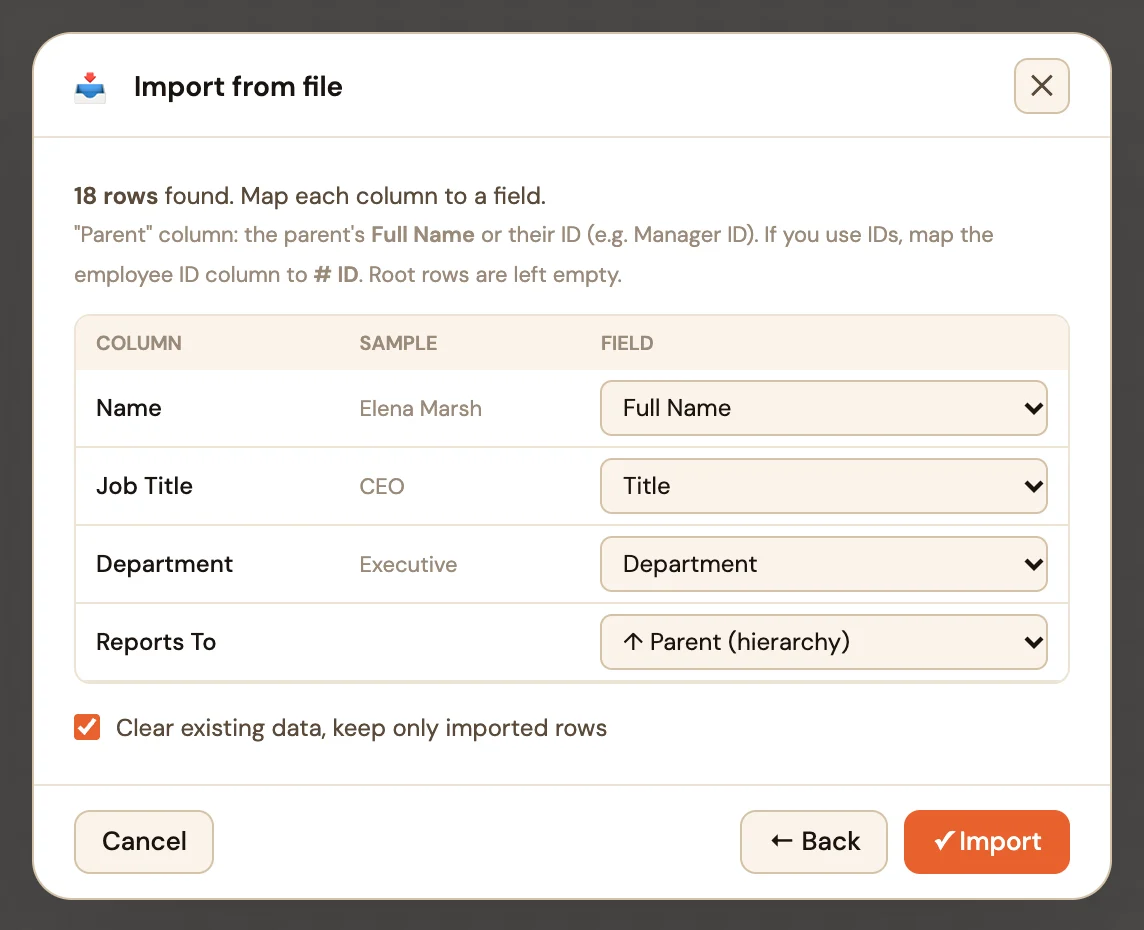 Common headers are recognized automatically. Here every column was mapped without any changes.
The chart is laid out immediately and zoomed to fit:
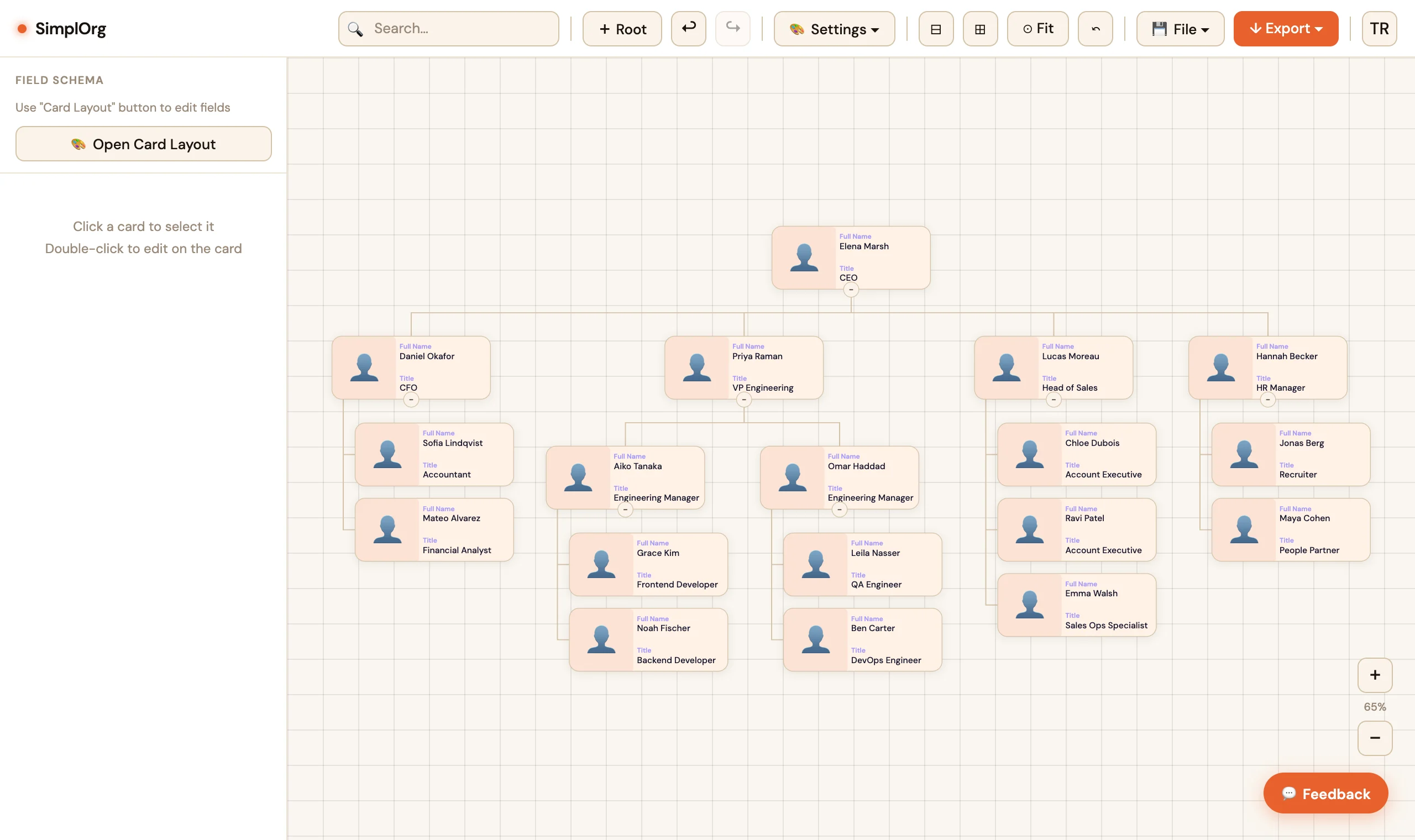 18 people, four levels, about ten seconds from file to chart.
Clear existing data decides whether the imported people replace what is on the canvas or are added to it. It is ticked automatically when the canvas is empty or still shows the demo chart, so a first import never ends up mixed with sample data.
How Column Mapping Works
Each column in your file is mapped to one of these:
- ↑ Parent (hierarchy): the manager column. Exactly one column must have this.
- # ID (for matching): the person's own ID, needed only when the manager column holds IDs.
- A field: Full Name, Title, Department, or any custom field you have added.
- — Ignore: the column is not imported.
The importer recognizes the usual header names on its own, including Manager, Reports To, Supervisor, Line Manager, Reporting Head, Reporting Manager, Manager ID, Employee ID, Employee Code, Job Title, Designation and Position, as well as Turkish equivalents.
If your manager column has an unusual header (say, Reports Up To), the importer looks at the values instead: it picks the column whose values match the names or IDs in your file. You only have to step in when none of that works.
Two safeguards keep the mapping honest:
- One column per field. If you map a second column to a field that is already taken, the first one switches to Ignore, so one column can't silently overwrite another.
- A warning before a bad import. If almost none of the values in the column you chose as Parent match a person in the file, the import stops and tells you, and suggests the column that does match:
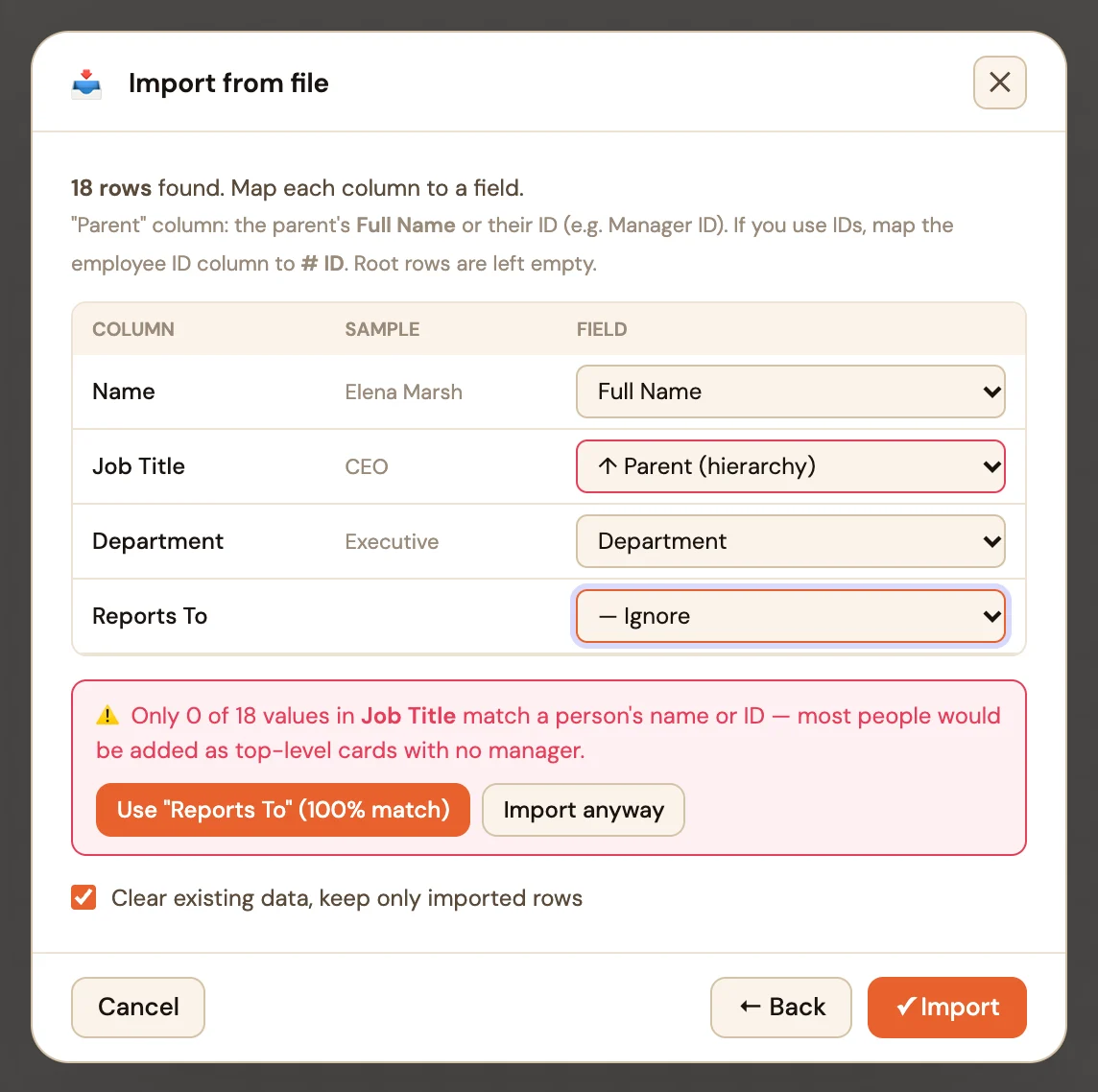 Job Title was chosen as the manager column by mistake. One click switches to the right one.
When the Chart Comes Out Wrong
Everyone appears in one long row. Nobody was matched to a manager, so every person became a top-level card. Usually the wrong column was mapped as Parent, or the manager column holds IDs while no column is mapped as # ID. Undo (Ctrl/Cmd+Z), import again and fix the mapping.
Some people float at the top on their own. Their manager's name doesn't match any row: a typo, a nickname, or a manager who isn't in the file. After import, a message tells you how many rows had no matching manager. Fix the spelling in the file, or select the card and choose the right person under Manager in the side panel.
Two people with the same name. Name matching takes the first match. Switch to IDs (an ID column plus a manager ID column) and the ambiguity disappears.
A loop in the data. If A reports to B and B reports to A, one of them is placed at the top so the chart can still be drawn. Check those two rows in your file.
Department doesn't show on the cards. It was imported, but the default card shows name and title only. Open Card Layout and add the Department field to the card. A message after import reminds you which imported fields are not on the cards yet.
The chart is very wide. Large flat teams spread sideways. Turn on Settings → Vertical leaves to stack people without reports under their manager, which usually makes the chart much more compact. The charts in this guide use it.
After the Import
- Edit like any other chart. Double-click a card to edit it, select a person and change their Manager to move them, and their whole team moves with them.
- Adjust the cards. Card Layout controls which fields appear and how; photos or emoji can be added per person.
- Export. PNG, SVG or PDF for slides and documents, Copy image for pasting into chat or email, or a read-only share link.
- Keep an editable copy. File → Save (JSON) saves the chart with all its settings so you can open and update it later.
Frequently Asked Questions
Can I make an org chart from Excel for free?
Yes. SimplOrg imports .xlsx, .xls and .csv files for free, with no account and no limit on the number of imports.
Is my employee data uploaded anywhere?
No. The file is read by your browser and the chart is kept in your browser. Nothing is sent to a server unless you choose to share a link.
What columns does the file need?
A name column and a manager column (the manager's name or ID). Title, department and an employee ID are optional.
Does it work with exports from HR systems?
Yes, as long as the export includes a manager or "reports to" field. Headers such as Manager ID, Reporting Manager and Reporting Head are recognized automatically.
How many people can I import?
There is no fixed limit. Files with a few hundred rows import in a second or two; very large charts are easier to read when you collapse teams or turn on vertical leaves.
Is there a template I can fill in?
Yes. The import window has a Download Template CSV button that matches your current fields, and our templates post explains how to fill it in.
The Bottom Line
If you keep a staff list with a manager column, you don't need to draw an org chart at all. Import the file, check that the manager column is mapped as Parent, and the hierarchy builds itself. When people change roles, update the spreadsheet and import again, or edit the chart directly.
Try it with your own file: open SimplOrg — free, no account, nothing uploaded.
Try SimplOrg — free, no signup
Drag-and-drop org chart editor. Your data stays in your browser.
🌳 Open the App