How to Make a Branded Org Chart with Your Company Logo (Free)
TL;DR: In SimplOrg you upload your logo once in Card Layout and it appears on every card. You set the card and accent colors with exact HEX values, drag the fields where you want them on the card, and add a photo per person. Export to PNG, SVG or PDF: the logo and photos come with it, and there is no watermark. Free, no account.
One logo upload, every card updated. Then the brand colors.
Last updated: November 2026.
Most org charts look the same: grey boxes, default blue lines, a name and a title. That is fine for a quick internal sketch. It is less fine when the chart goes into a welcome pack for new hires, an investor deck, a tender document or the intranet, where it sits next to everything else that carries your brand.
The usual way out is to rebuild the chart in a design tool. That gets you a nice picture, but a picture is hard to keep up to date: the next time someone joins or a team moves, you are back to moving boxes and redrawing lines by hand.
This guide shows how to get a branded chart that is still a real org chart: a hierarchy that redraws itself when people change, with your logo, colors and card design on top.
What You Need
- Your logo as PNG, SVG, JPG or WebP. A PNG or SVG with a transparent background looks best.
- Your brand colors as HEX codes (for example
#2F5D50). Your brand guidelines or website stylesheet will have them. - Your people. Type them in, or import a staff list from Excel or CSV (see How to Create an Org Chart from Excel or CSV).
- Optional: photos of the people on the chart.
The example in this guide is a fictional company, Fernhill Coffee Co., with a roastery, two cafés and a wholesale team.
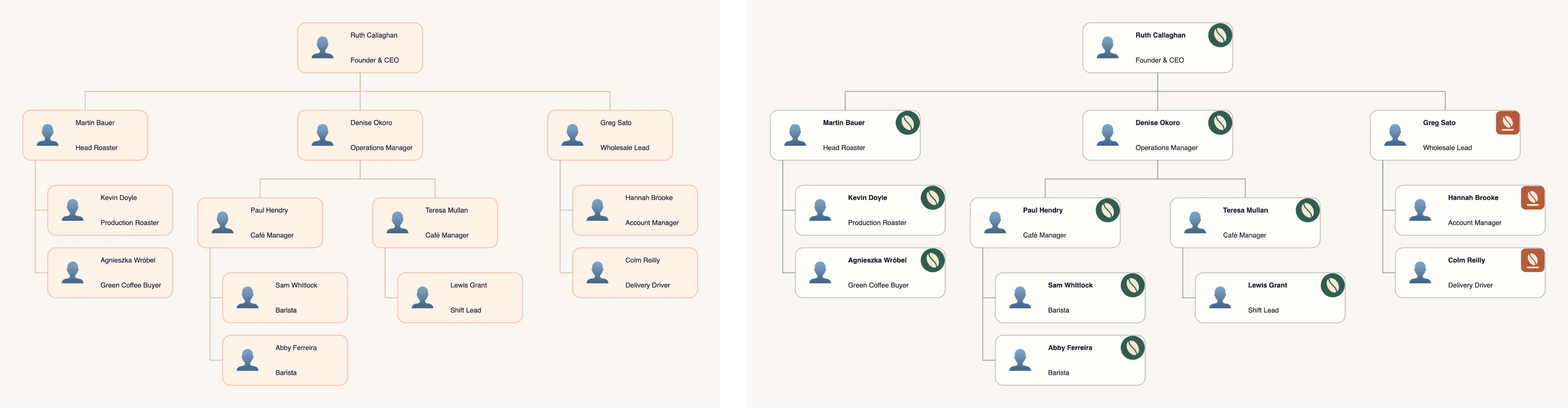 Same people, same structure. Left: default cards. Right: after about five minutes in Card Layout.
Step 1: Build or Import the Chart
Open SimplOrg. On an empty chart you can click Person to start by hand or Import from Excel to load a staff list. If you have never built a chart before, How to Create an Org Chart Online walks through the basics.
It helps to get the structure right first and brand it second. The branding applies to every card, so cards you add later pick it up automatically.
Step 2: Open Card Layout
Choose Settings → Card Layout. A panel opens on the right with three tabs: Card Layout, Schema Settings and Background. Changes show on the chart straight away, so you can see the result while you work. Done keeps your changes; Discard puts the cards back the way they were when you opened the panel.
At the top of the panel is the card area: a small grid that is the template for every card on the chart. Below it are the fields and widgets you can place on it.
Step 3: Add Your Logo Once
In Visual Fields, click Logo (or drag it onto the card area). A logo widget appears on the card. Select it, then click Upload logo on the right and pick your file.
That is the whole step. The logo now appears on every card in the chart, including cards you add later.
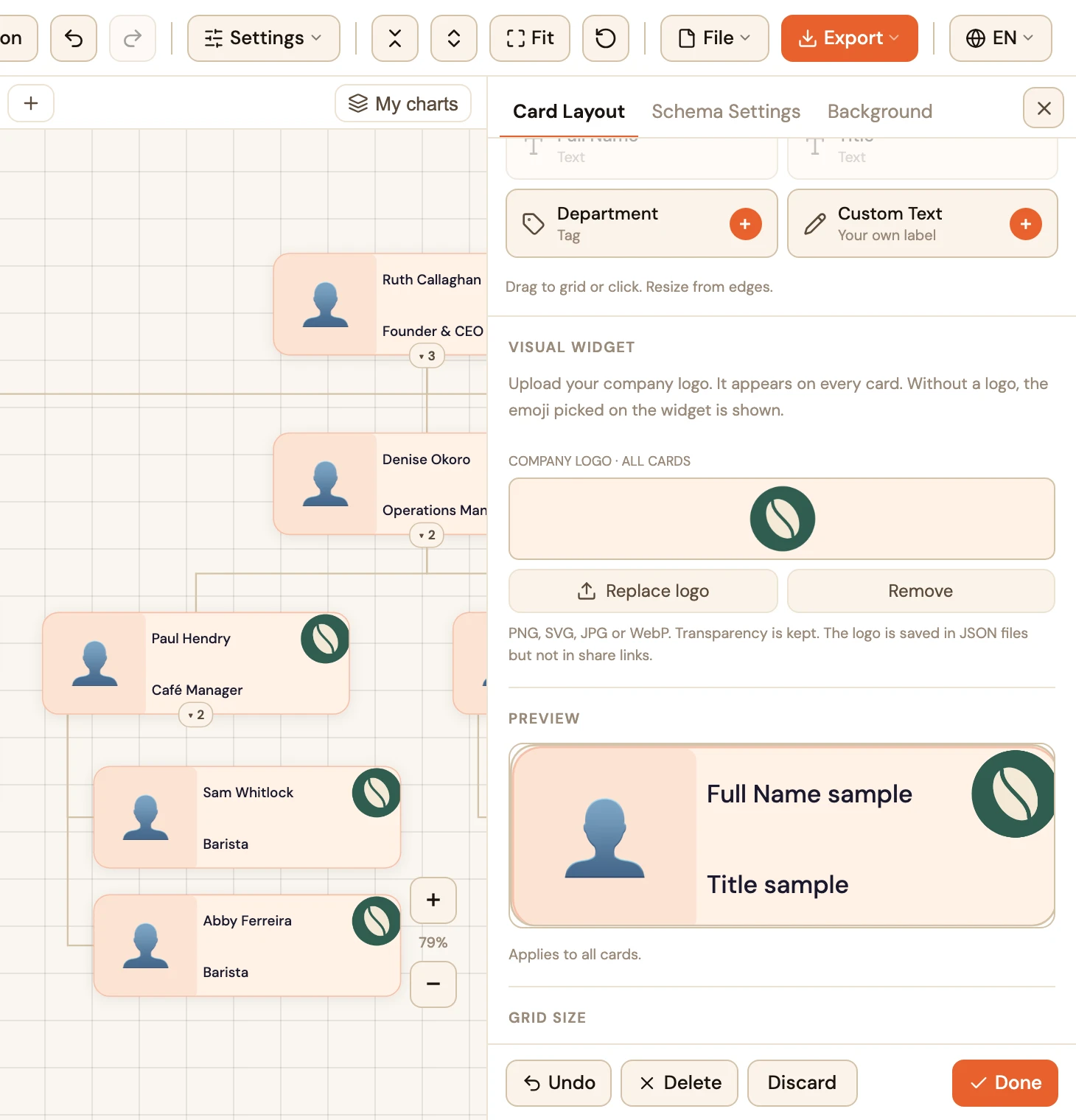 The logo is uploaded once and shared by all cards.
A few details that matter for logos:
- Nothing is cropped. The logo keeps its proportions and is fitted inside the widget.
- Transparency is kept. A transparent PNG sits cleanly on whatever card color you choose. SVG files are accepted too.
- Size the widget to the logo. Drag the widget's edges in the card area. A wide wordmark wants a wide, short widget; a square mark wants a square one.
A different logo for one team or subsidiary
Groups with several brands, franchises or subsidiaries often want the parent logo on most cards and a different one on part of the chart. Select a card on the chart, find the logo in the sidebar on the left and click Upload own logo. That card now shows its own logo; every other card keeps the shared one.
In the example, the wholesale team's cards carry the "Fernhill Wholesale" mark while the rest of the company shows the main logo.
Step 4: Use Your Brand Colors
Under Card Settings in the Card Layout tab:
- Accent color sets the card border and the small details on the card (tags, people counts, layer numbers).
- Card background sets the fill of every card.
Click either color to open the color picker. You can choose one of the 16 preset colors, open your system's color picker, or type an exact HEX code, which is the one you want for brand colors.
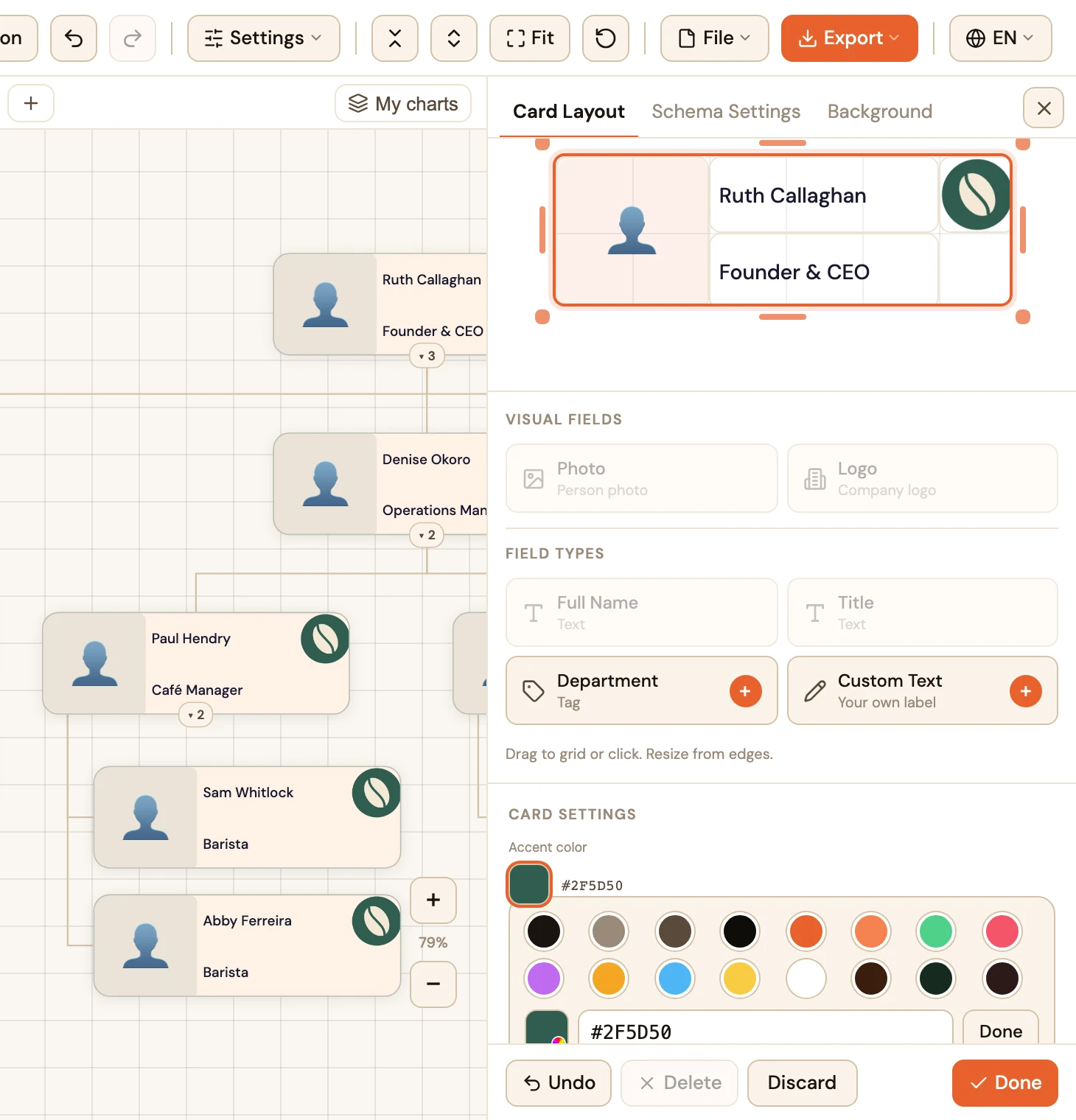 Type the HEX code from your brand guidelines for an exact match.
Two more color settings live elsewhere:
- Connector lines: in the Schema Settings tab, Connector Line Color sets the color of the lines between cards. A muted version of your main brand color usually works better than the full-strength one.
- Chart background: in the Background tab you can pick a background color and an optional pattern. It also sets the background of your PNG and PDF exports.
Different colors for some cards
To make a department or a leadership team stand out, select a card and use Card Color in the sidebar. Accent and background can be set per card, and Reset takes the card back to the shared colors. Each card is colored separately; there is no automatic "color by department" option yet.
Step 5: Design the Card Itself
This is where SimplOrg differs most from template-based tools. Instead of choosing from a list of fixed card designs, you lay out the card on a grid:
- Choose the fields. Name, title, department and any fields you added yourself can be placed on the card or left off. Fields you leave off are still saved and still show in the sidebar.
- Place and size them. Drag widgets around the card area and resize them from the edges. Make the name big and the department small, put the photo on the left or on top, give the logo its own corner.
- Change the grid. Use Columns and Rows (or drag the edge of the grid) to make cards wider, taller or more compact.
- Style the text. Select a field to set its font size, bold, italic, underline and text color.
- Field titles. Labels such as "Title" or "Department" are hidden on the card by default for a cleaner look. Turn on Show field title for any field that needs one.
- Corners. Corner smoothing goes from sharp to fully round, to match the shape language of your other materials.
- Custom Text adds a field of your own, such as Location, Phone or Start date, that you fill in per person.
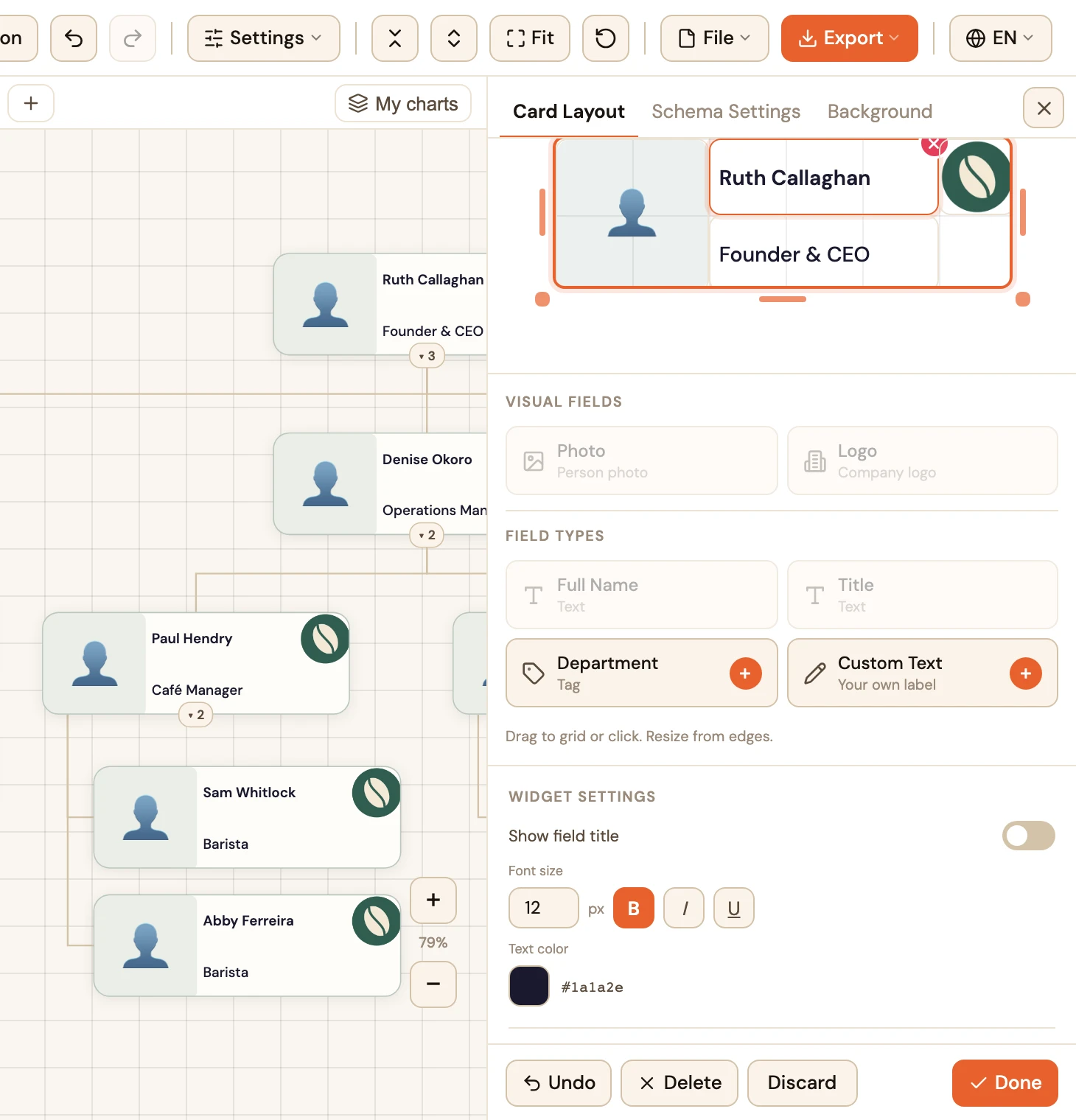 Every card on the chart follows this layout.
Step 6: Add Photos
Photos make a chart much more useful for new hires, who are mostly trying to put faces to names. Add a Photo widget in Card Layout, then select a person on the chart and click Upload photo in the sidebar. Photos are cropped to a square and shrunk to keep the chart light.
People without a photo show an emoji placeholder instead, so a half-finished chart still looks tidy. If the same picture appears on several cards (a team icon, for example), you can reuse an image you already uploaded instead of uploading it again.
Step 7: Export
Choose Export and pick:
- PDF for documents, tenders and printing.
- PNG for slides, wikis and chat. Copy image puts it straight on your clipboard.
- SVG when a designer will take it further, or for sharp scaling in a layout tool.
Your logo, photos, colors and card layout are all included in the export, and there is no watermark.
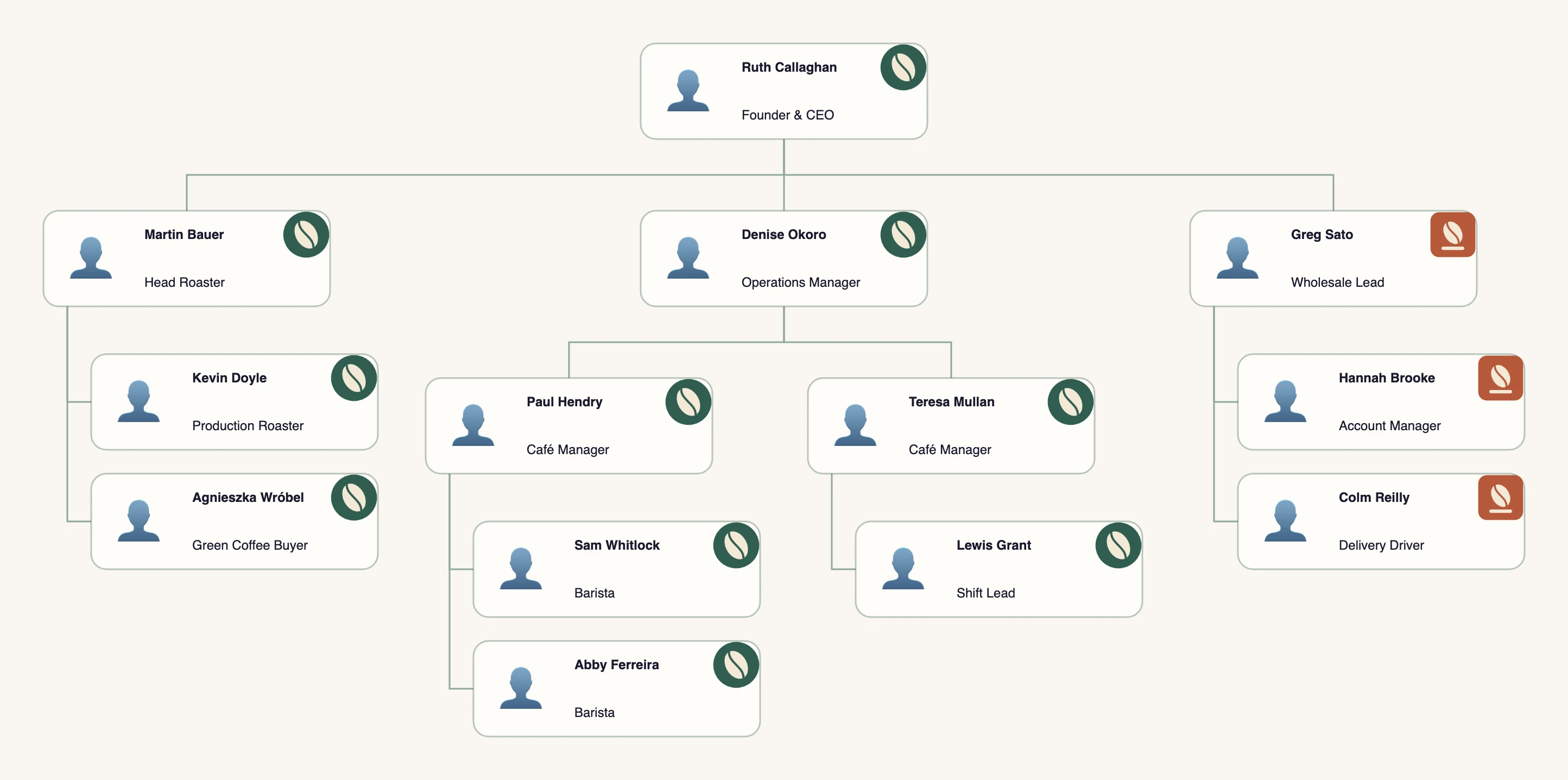 The finished chart, exported as PNG.
Keeping the Branded Chart Up to Date
Because the branding lives in the card layout and not on individual boxes, updating the chart is ordinary org chart work. Add a person and the card arrives already branded. Change someone's manager and the chart redraws itself. Nothing needs to be re-aligned by hand.
To keep the design for next time, save the chart with File → Save (JSON). The JSON file contains everything, including your logo and photos. File → Load (JSON) later (or on another computer) brings the whole chart back exactly as it was.
How SimplOrg Compares for Custom Cards
We make SimplOrg, so weigh this section accordingly. We think it is the most flexible free option for branded org charts that stay editable, for three reasons that work together:
- The logo is part of the card template. You upload it once and every card, including the ones you add next month, carries it. In design and diagram tools a logo is an image you place on the canvas yourself.
- The card layout is yours. You decide which fields appear, where, how big and in which style, on a grid, instead of picking from a fixed set of card designs.
- It stays an org chart. Move a person and the hierarchy redraws itself with the branding intact.
Here is how that sits next to the tools people usually try, using the free-plan facts from our comparison of free org chart software (checked October 2026):
| SimplOrg | Canva | draw.io | Lucidchart (free) | |
|---|---|---|---|---|
| Account needed | No | Yes | No | Yes |
| Free-plan limit | None | Some template elements paid | None | 3 documents, 75 shapes each |
| Builds the hierarchy for you | Yes | No, it is a graphic | Partly | Yes |
| Custom fonts | No | Yes | Yes | Yes |
The honest summary: if the chart is a one-off graphic in a brochure and design freedom matters most, Canva gives you more typographic control. If you need a chart that is branded and that you will keep editing as people join and leave, SimplOrg gets you there with less work, and without an account.
Limits to Know About
- No font choice. Cards use SimplOrg's built-in typeface. You control size, weight, style and color, but not the font family.
- Without an account, share links don't carry images. A share link you create while signed in includes the logo and photos, and so does an embed. Without an account, the link shows your colors and card layout but not the uploaded images. To pass the complete chart on without signing in, use Save (JSON) or export a PNG or PDF.
- No real-time co-editing. Shared links open read-only; the viewer can make their own copy.
- Colors are per chart or per card. There is no automatic coloring by department yet.
Frequently Asked Questions
Can I put my company logo on an org chart for free?
Yes. In SimplOrg, add a Logo widget in Card Layout and upload your logo once. It appears on every card, and it is included in PNG, SVG and PDF exports without a watermark. No account is needed.
Will my logo keep its transparent background?
Yes. Logos are not cropped and PNG or SVG transparency is kept, so the logo sits cleanly on any card color.
Can different teams or subsidiaries have different logos?
Yes. Select a card and use Upload own logo in the sidebar. That card shows its own logo while the rest of the chart keeps the shared company logo.
Can I use my exact brand colors?
Yes. Every color picker has a HEX field, so you can type the exact code from your brand guidelines for the card background, accent, connector lines and chart background.
Does the logo show up when I share a link?
Yes, if you are signed in: a share link you create while signed in includes the logo and photos, and embeds always do. Without an account, a share link shows the colors and card layout but not uploaded images. To share the full branded chart without an account, export a PNG or PDF, or send the JSON file from File → Save (JSON).
The Bottom Line
A branded org chart doesn't have to be a graphic you redraw every quarter. Upload your logo once, set your colors with HEX codes, lay out the card the way you want it, and keep editing the chart like any other org chart.
Open SimplOrg to brand your chart, or start from one of the free org chart templates.