How HR Teams Can Keep a Monthly Org Chart Archive (Free, No Install)
TL;DR: Keep one source of truth (your HR system export or a master spreadsheet), and once a month turn it into two files: an editable chart (.json) and a fixed record (.pdf or .png), saved in a dated folder such as Org charts/2026/2026-11/. Note what changed in a simple change log. The routine takes about ten minutes, and a year later you can open any month exactly as it was. Everything below works with the free SimplOrg editor and your company's own shared drive.
"What did the team look like before the reorganization?" "Who was reporting to whom in March?" HR gets these questions from auditors, finance, new managers and leadership, and the honest answer is often a stale slide or nothing at all. An org chart is easy to draw once; keeping it current and keeping its history is what usually fails.
The fix is not a bigger tool. It is a small routine with a fixed place for the files. This post describes one that works for teams from 20 to a few hundred people.
Why Keep a Monthly Archive?
- Audits and due diligence. Reporting lines at a given date are a common request, and a dated PDF answers it in seconds.
- Headcount and budget planning. Comparing this quarter's structure with the last one shows where teams grew, shrank or were merged.
- Reorganizations. A clean "before" snapshot makes it easier to plan the "after" and to explain it.
- Onboarding. New managers get a current chart instead of a screenshot from last year.
- Institutional memory. When people leave, the structure they built doesn't disappear with them.
Monthly is a good default: frequent enough to catch every change, rare enough to stay a habit. Very stable organizations can switch to quarterly.
Step 1: Choose One Source of Truth
Decide where changes are made. Everything else is generated from it. There are two good options:
A. Your HR system or a master spreadsheet (recommended for 50+ people). Changes are recorded there anyway. Each month you export the staff list with a manager column and import it into SimplOrg; the chart is redrawn from the data. Nobody edits the chart by hand, so it can never drift from the records.
B. The chart itself (fine for smaller teams). You open last month's chart, apply the changes in the editor and save it as this month's version. No spreadsheet to maintain, but the chart becomes the record, so be disciplined about saving each month.
What matters is choosing one. Two places where changes are made means two versions of the truth within a month.
Step 2: Set Up the Folder and Naming Convention
Use your company's existing shared drive (SharePoint, Google Drive, a network share) with access limited to HR. A structure like this keeps years of history easy to browse:
Org charts/
├── 2026/
│   ├── 2026-10/
│   │   ├── orgchart-2026-10.json     ← editable chart
│   │   ├── orgchart-2026-10.pdf      ← fixed record for sharing and audits
│   │   └── staff-list-2026-10.xlsx   ← the export it was built from (option A)
│   └── 2026-11/
│       └── …
└── change-log.xlsx
A few conventions that pay off:
- Year-month in every file name (
2026-11, notNovember). It sorts correctly and leaves no doubt about which file is which. - Always save both formats. The
.jsonfile reopens in SimplOrg with every card, field and setting intact, so you can edit it later. The.pdf(or.png) is what you send to people and attach to audit requests; it can't be changed by accident. - Keep the source export (option A). If someone questions a reporting line, you can show exactly what data the chart was built from.
Step 3: The Monthly Routine (About 10 Minutes)
Pick a fixed day, for example the first working day of the month, and put it in the calendar.
Option A, from your HR export:
- Export the current staff list with a manager column and save it in the new month's folder.
- Open SimplOrg, choose File → Import from file and drop in the export. Check that the manager column is mapped as Parent and import.
- If you've customized the cards (fields, layout, colors), open last month's
.jsonfirst and import into it with Clear existing data ticked, so the card design carries over. Photos belong to individual people, so a re-import doesn't keep them; if photos matter, option B does. - Skim the chart for anything odd: someone sitting alone at the top usually means a missing or misspelled manager in the data.
- Save: File → Save (JSON), and Export → PDF (or PNG).
Option B, editing the chart:
- Open last month's file with File → Load (JSON).
- Apply the changes:
- New hire: select their manager and click + Person (or + Add Child in the side panel).
- Leaver: first move their reports to a new manager, then select the card and click Delete. Delete removes the person and everyone under them, so the order matters (Undo is there if you slip).
- Manager change or team move: drag the person's card onto their new manager, or select them and pick the new manager under Reports to in the side panel. Their whole team moves with them.
- Title or department change: double-click the card, or edit the fields in the side panel.
- Dotted-line reporting: use + Add dotted-line manager in the side panel for a secondary manager.
- Save the JSON and export the PDF into the new month's folder.
Your browser downloads the chart as simplorg.json. Rename it to the month (orgchart-2026-11.json) when you move it into the folder, or set your browser to ask where to save downloads.
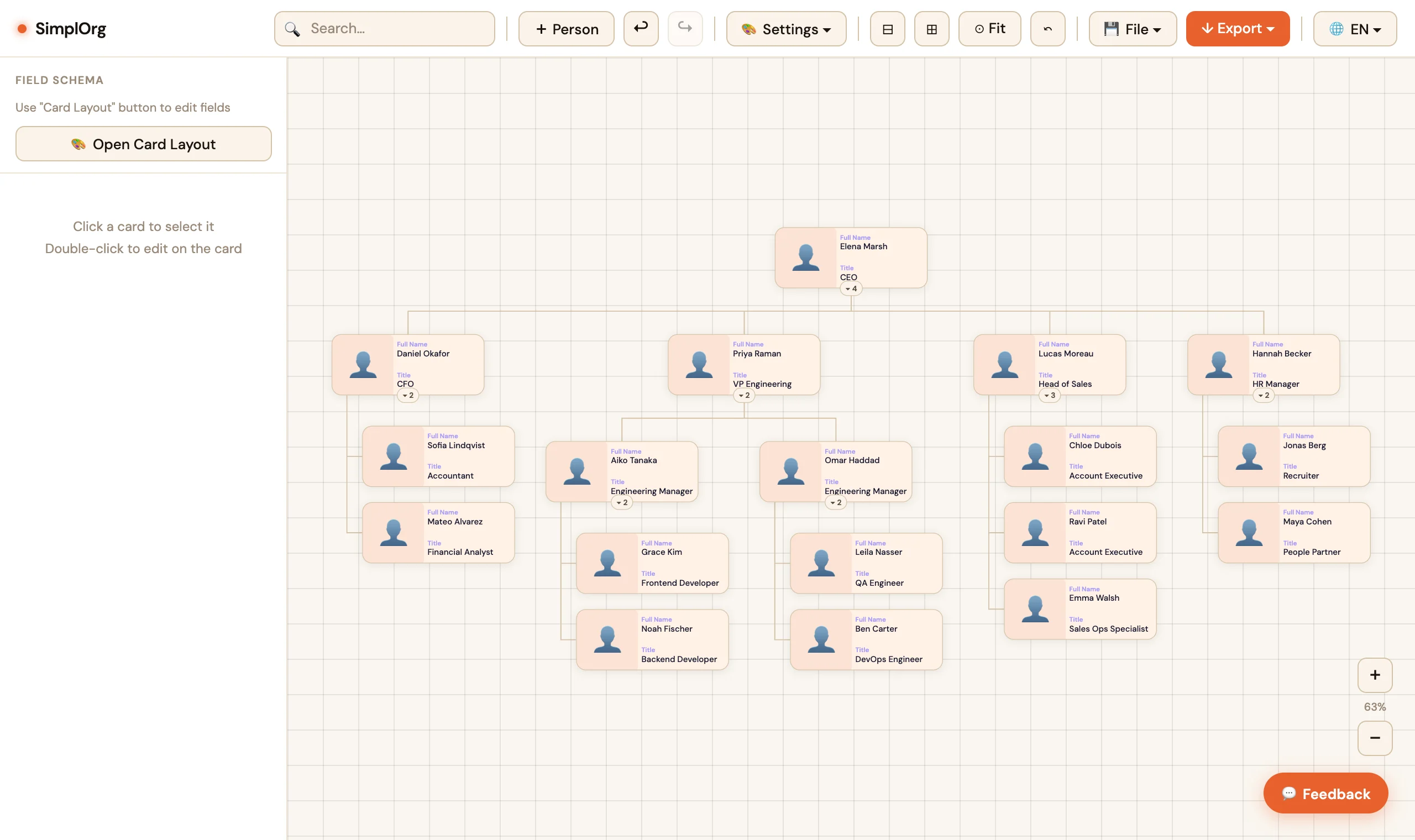 Before: two engineering managers, each with their own team.
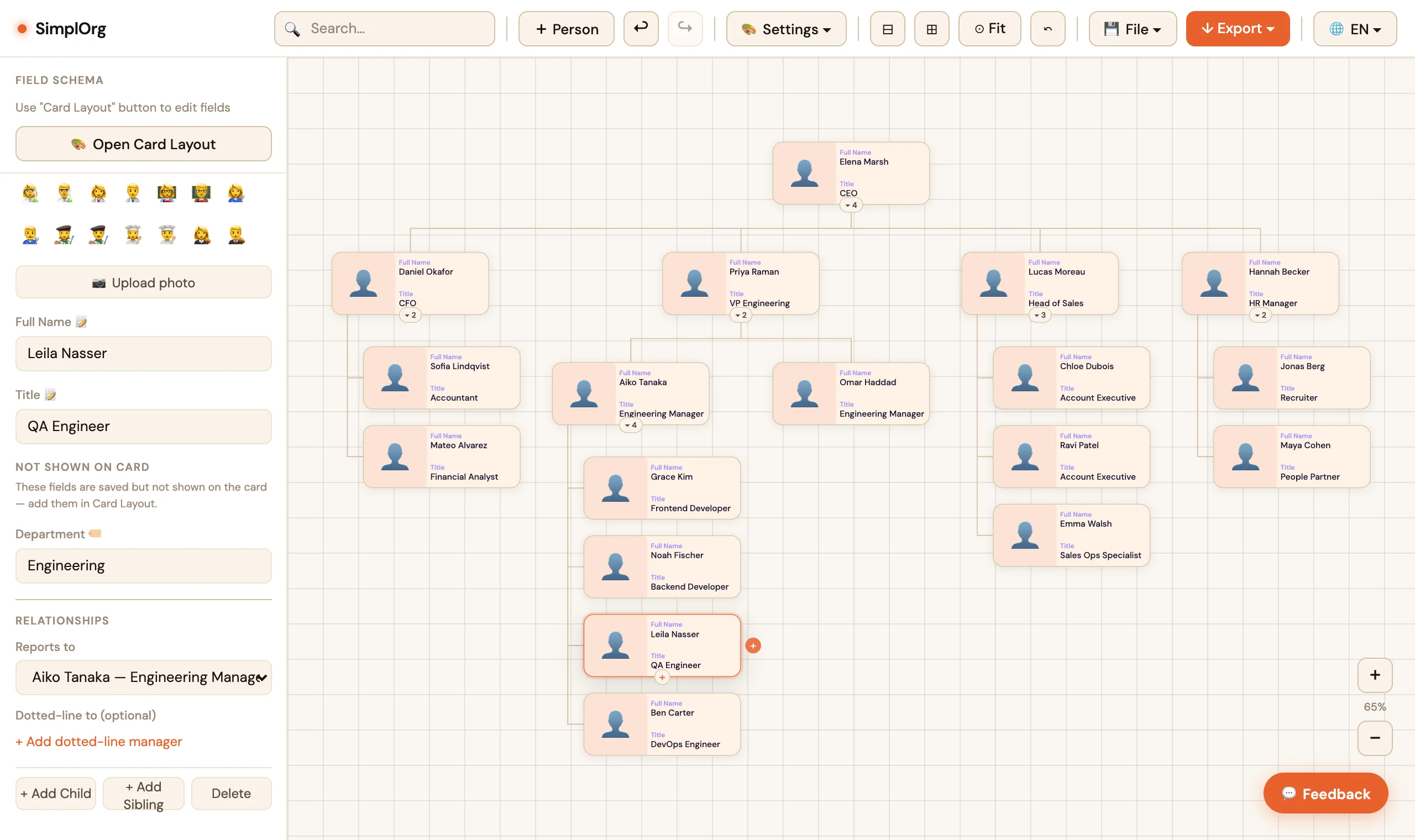 After: Leila and Ben now report to Aiko. Changing a person's manager (in the side panel or by dragging the card) moves them, and anyone under them, in one step.
Step 4: Keep a Change Log
The charts show what the structure was. A change log explains why it changed, which is usually what people ask about later. One sheet is enough:
| Month | Change | People | Effective date | Note |
|---|---|---|---|---|
| 2026-11 | Team moved | Leila Nasser, Ben Carter → Aiko Tanaka | 2026-11-01 | Platform and QA merged |
| 2026-11 | New hire | Sara Lopez (Recruiter) → Hannah Becker | 2026-11-10 | |
| 2026-11 | Leaver | Mateo Alvarez | 2026-11-28 | Replacement approved |
Fill it in as changes happen, not at the end of the month. Then the monthly routine is just a matter of applying what's already listed.
Step 5: Share the Current Chart
- For slides and documents: the PDF or PNG from this month's folder.
- For a quick look: Copy image pastes the chart straight into chat or email.
- For a link: Share creates a read-only link. Recipients can view it, and anyone who wants to experiment can click Create My Copy without changing yours. Photos are not included in links, so use the PDF when photos matter.
Send the link or PDF together with a short note of what changed, taken from the change log.
Privacy and Retention
An org chart is personal data: names, titles and reporting lines. A few sensible defaults:
- Store the archive on your company drive with HR-only access, like other HR records.
- Apply your normal retention policy. If HR records are kept for a set number of years, the same can apply to old charts and exports.
- Share PDFs rather than raw exports. The staff list export may contain columns (salary bands, personal emails) that don't belong on an org chart; the importer lets you ignore those columns, and the PDF only shows what's on the cards.
This is general guidance, not legal advice; your own policy and local regulations come first.
What This System Doesn't Do
To set expectations honestly:
- No automatic sync with your HR system. The monthly export and import is the sync. It is a deliberate, reviewable step, but it is a manual one.
- No real-time co-editing. One person updates the chart; others receive the PDF or a link. For most HR teams that is how it should work anyway.
- No built-in month-to-month comparison. Open two months side by side, or rely on the change log, which explains differences better than a visual diff would.
Checklist
- One source of truth chosen (HR export / master sheet, or the chart itself)
-
Org charts/folder on the shared drive, HR-only access - Monthly reminder on a fixed day
- Each month:
orgchart-YYYY-MM.json+orgchart-YYYY-MM.pdf(+ source export) - Change log updated as changes happen
- Current PDF or link shared with a short summary of changes
Frequently Asked Questions
How often should HR update the org chart?
Monthly works for most organizations, plus an extra snapshot right before and after any reorganization. Very stable teams can update quarterly.
What format should an org chart archive be in?
Keep two: an editable format you can reopen and change (SimplOrg's .json), and a fixed format for records and sharing (PDF or PNG).
Can I see what the org chart looked like in a previous month?
Yes, if you saved that month's file. Open the .json with File → Load (JSON) to see and even edit it exactly as it was, or open the PDF.
Can several people in HR maintain the chart?
Yes, through the shared folder: whoever runs the monthly routine opens the latest .json, updates it and saves the new month. There is no simultaneous editing, so agree on who owns each month's update.
The Bottom Line
An up-to-date org chart with a full history doesn't need an expensive platform. It needs one source of truth, a dated folder, two files per month and ten minutes on a fixed day. Set it up once and the next "what did we look like in March?" takes a minute to answer.
Start this month's snapshot: open SimplOrg — free, no account.