How to Make an Org Chart in Google Sheets (Free Add-on)
TL;DR: Put one person per row with a Name column and a Manager column. Install the free SimplOrg Org Chart add-on from the Google Workspace Marketplace, then choose Extensions › SimplOrg Org Chart › Create org chart. Check the columns, pick a card shape and click Insert chart. The chart lands next to your data as an image and updates while you edit the sheet. Free, no signup.
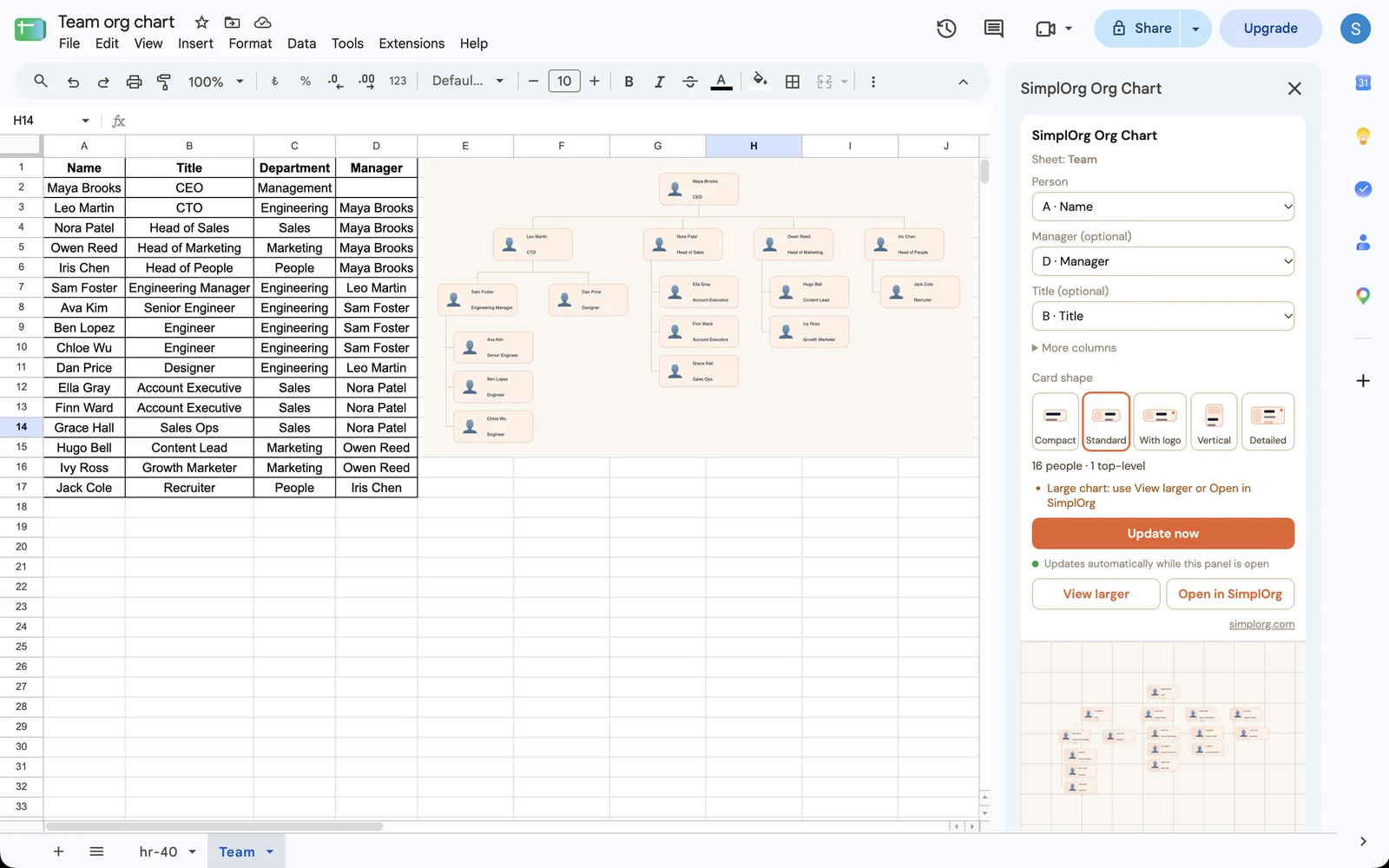 The data on the left, the chart in the middle, the add-on panel on the right.
Last updated: November 2026.
A lot of org charts already live in a spreadsheet. HR keeps a staff list, a team lead keeps a roster, a school keeps a list of teachers and who they report to. The list is the source of truth, and the chart is something you redraw by hand every few months in a slide or a diagram tool.
It is easier the other way round: keep the list, and let the chart come from it. This guide shows how to do that in Google Sheets. (In the UK, India and much of Europe the same thing is often called an organogram or organigram. Everything below applies to those too.)
Option 1: the built-in "Organizational chart"
Google Sheets has an org chart type of its own. Select two columns (the person, then their manager) and choose Insert › Chart, then set Chart type to Organizational chart.
It works, and for a very small team it can be enough. But it is quite limited:
- Each box shows one value, usually the name. To show a title as well you have to build the label with a formula.
- There are almost no style options: box color, selected box color and a size setting.
- With more than 15 or 20 people the chart gets wide and the text becomes hard to read.
- There is no clear message when a manager name does not match anyone. The person simply ends up on top.
If you need titles, departments, readable cards or a chart you can put in a document, an add-on does a better job.
Option 2: the SimplOrg add-on
Step 1: prepare the data
One row per person. You need two columns, and two more are useful:
| Name | Title | Department | Manager |
|---|---|---|---|
| Maya Brooks | CEO | Management | |
| Leo Martin | CTO | Engineering | Maya Brooks |
| Nora Patel | Head of Sales | Sales | Maya Brooks |
| Sam Foster | Engineering Manager | Engineering | Leo Martin |
| Ava Kim | Senior Engineer | Engineering | Sam Foster |
A few rules make the chart come out right:
- The Manager cell holds the manager's name, written the same way as in the Name column. Case and extra spaces do not matter.
- Leave Manager empty for the person at the top.
- Have an employee ID? If your HR export has an ID and a Manager ID column, use those instead of names. That way two people with the same name are not a problem.
Header names are up to you. The add-on guesses the columns from headers like "Name", "Employee", "Manager" or "Reports to", and you can change its guess.
Step 2: install the add-on
Open the listing on the Google Workspace Marketplace and click Install. Google asks for two permissions: to view and manage only the spreadsheet you use the add-on in, and to show its menu and panel. It cannot open your other files.
Step 3: open the panel and check the columns
In your spreadsheet, choose Extensions › SimplOrg Org Chart › Create org chart. The panel opens on the right with its guesses for Person, Manager and Title. Under More columns you can add a Department or an ID column.
Below the columns the panel counts the people and top-level people, for example "16 people · 1 top-level". One top-level person is what you usually want.
Step 4: pick a card shape and insert the chart
There are five card shapes: Compact, Standard, With logo, Vertical and Detailed. Compact keeps large charts small. Detailed also shows the department.
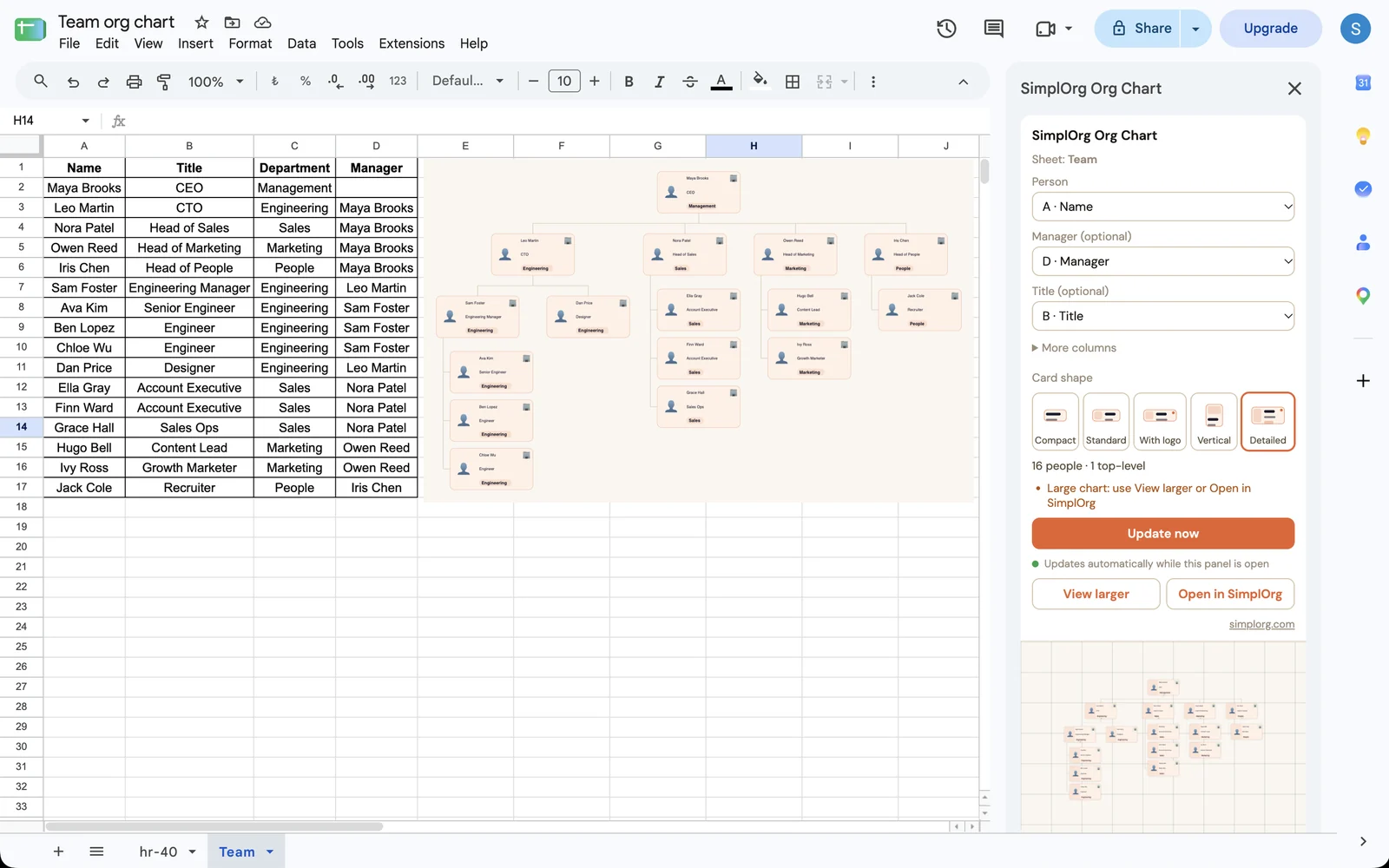 The Detailed shape adds the department to every card.
Select an empty cell next to your data and click Insert chart. The chart is placed there as an image. You can move and resize it like any other image in Sheets.
Step 5: keep editing
While the panel is open, the chart updates a few seconds after you change the sheet: add a row, change a manager, fix a title. When the panel is closed, use Extensions › SimplOrg Org Chart › Refresh chart.
The chosen columns and card shape are saved in the spreadsheet, so anyone who can edit it can refresh the same chart.
When a name does not match
The most common problem is a typo in the Manager column. If "Leo Martin" is written as "Leo Martn" in one row, that person and their team no longer connect to Leo. The add-on tells you so:
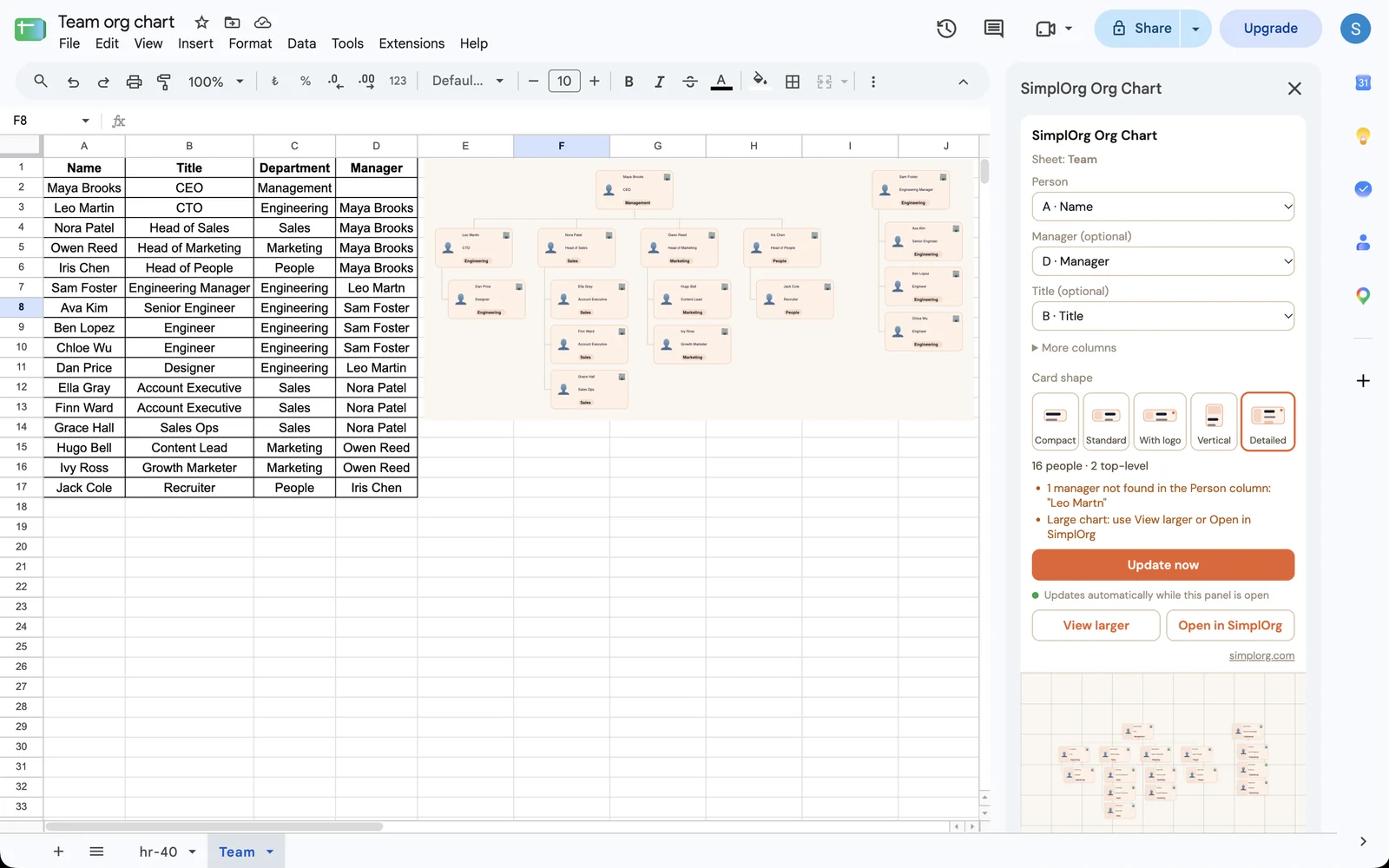 A typo in one Manager cell: the panel names the value it could not find.
The panel also warns about reporting loops (A reports to B and B reports to A), several top-level people, empty rows and duplicate names. Fix the cell, and the chart updates.
Large charts: View larger
Google limits an image in a sheet to about one million pixels, so big charts are drawn smaller. Click View larger to open the chart in a bigger window with zoom.
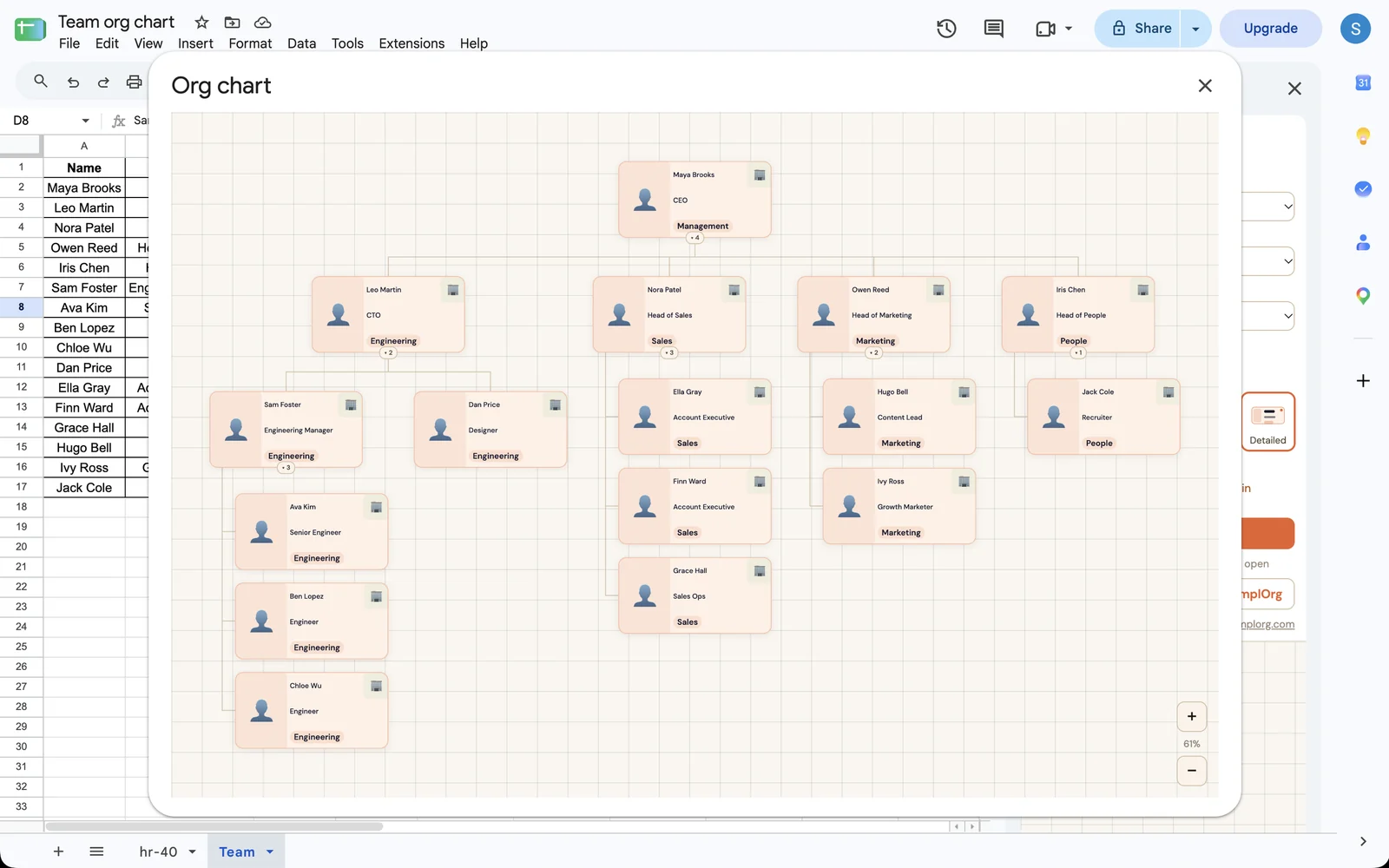 View larger shows the whole chart at a readable size.
Going further in the editor
The add-on is for a quick, always current chart next to your data. When you want more, click Open in SimplOrg. The chart opens in the full SimplOrg editor in a new tab, where you can:
- add photos and your company logo,
- change colors and design the card layout,
- move cards and teams by hand,
- export to PNG, SVG or PDF with no watermark.
If you prefer to start from a file instead, the Excel and CSV import guide covers that route, and the free org chart templates give you a ready-made structure to start from.
FAQ
Is the add-on free? Yes. The add-on and the SimplOrg editor are free, with no account needed.
Where does my sheet data go? The chart is drawn inside the add-on panel in your browser, and the image goes back into your spreadsheet. Nothing from your sheet is sent to or stored on the SimplOrg server. Details are on the add-on page and in the Privacy Policy.
How many people can it handle? Up to 2,000 rows are read. Large charts are drawn smaller in the sheet, and View larger or Open in SimplOrg show them in full.
Can I show photos on the cards? Not in the add-on yet. Use Open in SimplOrg and add them in the editor.
The panel shows an error or stays empty. What now? This usually happens when you are signed in to several Google accounts in the same browser. Open the spreadsheet in a browser profile or private window with only the account that installed the add-on.
Ready to try it? Install SimplOrg Org Chart for Google Sheets, or read more about the add-on on the Google Sheets page.