SimplOrg Org Chart for Confluence
Build and edit org charts right inside Confluence pages. Import from Excel or CSV. Your data stays in Atlassian.
The app is in review for the Atlassian Marketplace. This page will link to the listing as soon as it is live.
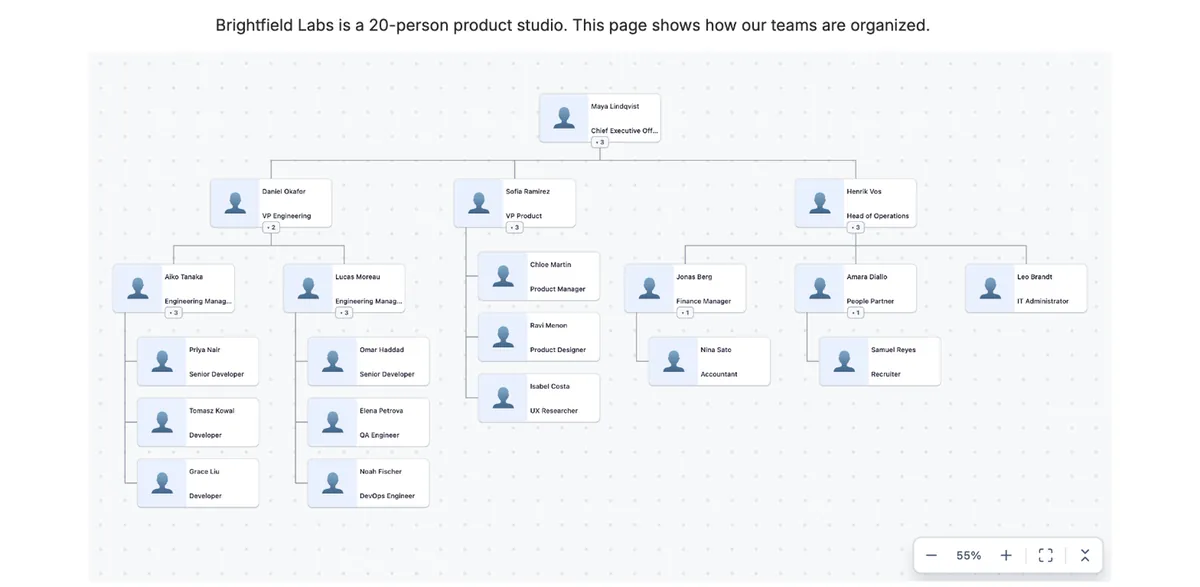
Features
Full editor in Confluence
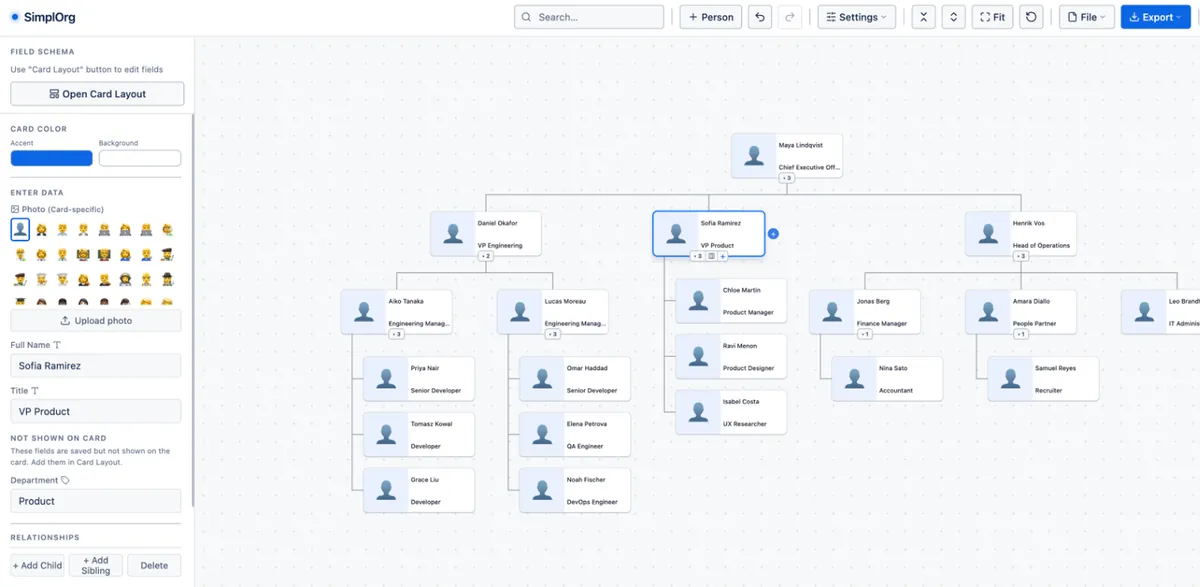
Edit cards, colors, card shapes and layout in a full-screen editor without leaving the page. Changes are saved automatically.
Easy to read on the page
Readers zoom, fit the chart to the screen, and collapse or expand teams. Scrolling over the chart scrolls the page as usual.
From a spreadsheet
Import an Excel or CSV file with Name and Manager columns and the chart is drawn for you. Managers missing from the file get their own cards.
Add from Atlassian
Add people from your site's Atlassian groups as cards. This adds their display names only; set managers in the editor or with a file.
Two themes
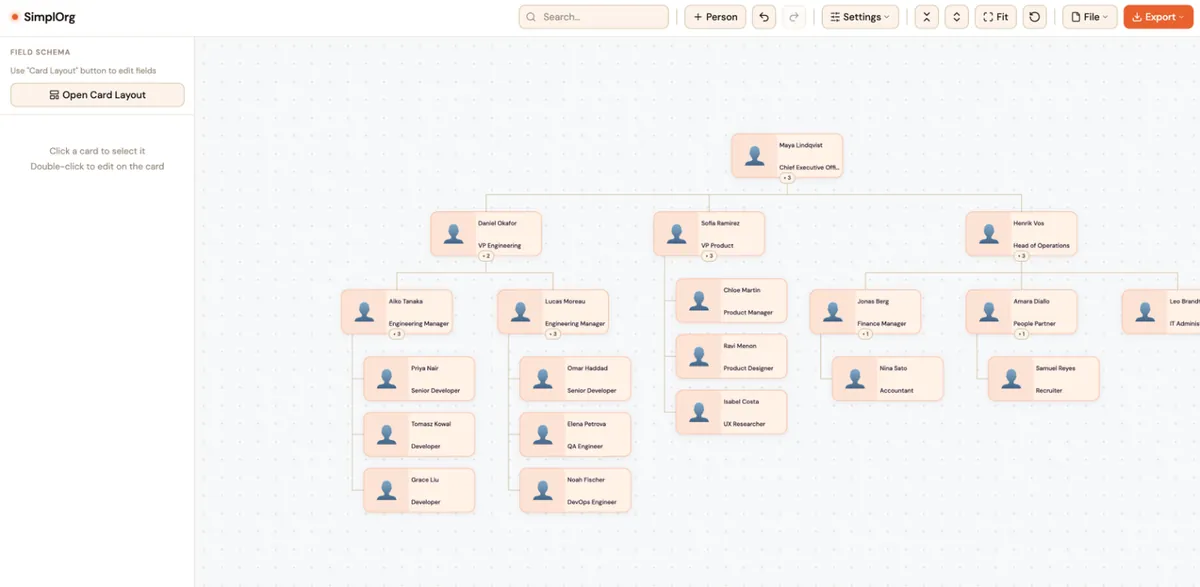
Pick SimplOrg Classic or Atlassian to match your pages. New charts start with the Atlassian theme.
In PDF and Word exports
When you export the page from Confluence to PDF or Word, the chart is included as an image.
Page copies stay separate
When you copy a page, the copy gets its own chart when you first save it. The original chart does not change.
Editors only
Anyone who can view the page can see the chart. Only people who can edit the page can change it.
Data and privacy
Your charts stay in your Confluence site. The app does not send your data to SimplOrg. See the Privacy Policy and the Terms of Service.
Get started
Install the appA Confluence site admin installs SimplOrg Org Chart for Confluence from the Atlassian Marketplace (see Install above).
Insert the macroEdit a page, type / or click + in the toolbar, search for SimplOrg and choose SimplOrg Org Chart. The full-screen editor opens.
Build the chartUse File › Import from file to start from a spreadsheet, File › Add from Atlassian to add people by name, or + Person to add cards yourself.
Close the editor and publishChanges are saved automatically. Click Save to save and close, then publish the page.
Edit an existing chart
Edit the page and select the macro. Click the pencil in the toolbar that appears, or the settings icon next to the macro name. The editor opens with the saved chart.
Saving
- The editor saves a few seconds after each change. The status next to Save shows Saving… and then Saved.
- Save saves right away and closes the editor. Closing with Confluence's X is also safe: pending changes are saved.
- There is no Cancel. Use Undo to go back a step.
Reading the chart on the page
On the published page, the toolbar in the bottom right corner has Zoom out, the zoom level (click it to go back to 100%), Zoom in, Fit to screen and Collapse all / Expand all. On a narrow macro, the last buttons move into the More menu. These controls only change your own view; they do not change the saved chart.
Themes
In the editor, open Settings › Theme and choose SimplOrg Classic or Atlassian. The theme is saved with the chart, so readers see the same look.
Export
- From Confluence: PDF and Word exports of the page include an image of the chart as it was last saved.
- From the editor: the Export menu downloads PNG, SVG or PDF, or copies the chart as an image. File › Save (JSON) downloads the chart as a file you can load again later.
Import from Excel or CSV
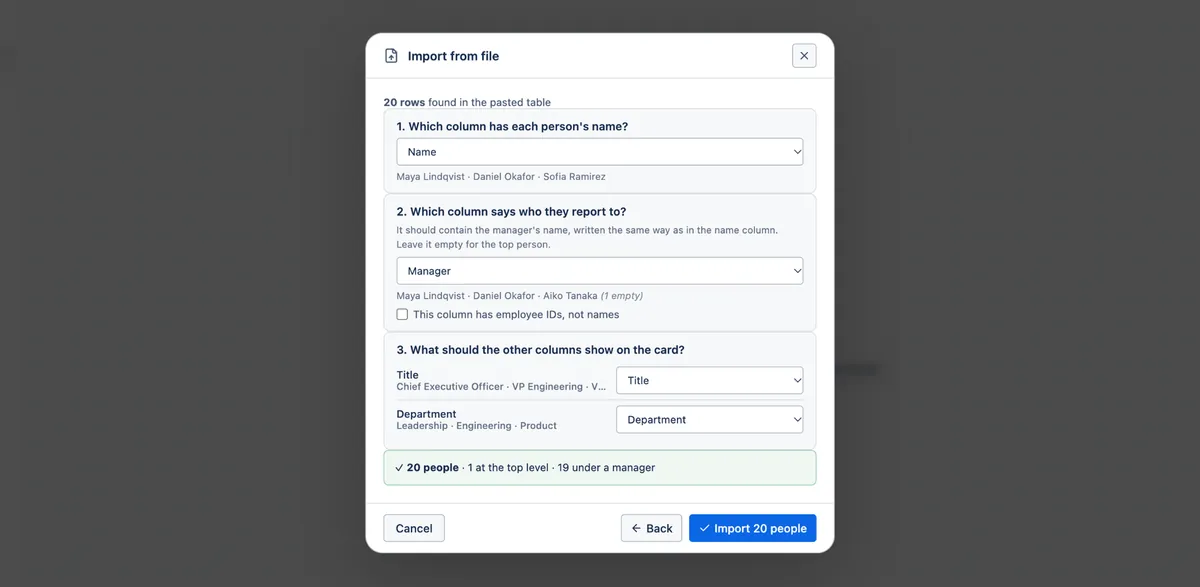
Your file needs one row per person, a column with each person's name, and a column with their manager's name. Title and Department columns are optional.
- In the editor, choose File › Import from file and pick an
.xlsxor.csvfile. You can also paste a table copied from a spreadsheet. - Choose the column that has each person's name.
- Choose the column that says who they report to. The manager's name must be written the same way as in the name column; leave it empty for the person at the top. If your file has employee IDs instead of names, tick This column has employee IDs, not names.
- Choose what the other columns show on the card, such as Title and Department.
- Check the summary (for example "20 people · 1 at the top level · 19 under a manager") and click Import.
Managers who appear in the Manager column but not in the name column get their own cards, so nobody is left out.
A small example file:
Name,Manager,Title,Department
Maya Lindqvist,,Chief Executive Officer,Leadership
Daniel Okafor,Maya Lindqvist,VP Engineering,Engineering
Sofia Ramirez,Maya Lindqvist,VP Product,Product
Aiko Tanaka,Daniel Okafor,Engineering Manager,Engineering
Chloe Martin,Sofia Ramirez,Product Manager,Product
The import window also has a Download Template CSV button with the right columns. For tips on preparing an HR export, see how to make an org chart from Excel or CSV.
Add from Atlassian
Choose File › Add from Atlassian, pick a group on your site, select people and click Add. They are added as cards under the selected card (or at the top). Atlassian does not share people's managers, job titles or profile photos with apps, so only display names are added. Set reporting lines by dragging cards onto their manager, or import a file.
FAQ
Where is my data?
In your Confluence site. The app does not send your data to SimplOrg. See Data and privacy.
Can the app get managers and job titles from Atlassian?
No. Atlassian does not share people's managers, job titles or profile photos with apps, so Add from Atlassian only adds display names. To build the reporting lines, import an Excel or CSV file with Name and Manager columns, for example an export from your HR system.
Does it connect to Microsoft Entra ID or Google Workspace?
Not yet. A Microsoft Entra ID connection is planned for a later version; there is no date yet. Google Workspace is not supported. Until then, export people from your directory to Excel or CSV and import the file.
Does the chart follow Confluence's dark theme?
No. When Confluence uses its dark theme, the chart stays in light colors, like an image on the page. This keeps it the same as in PDF and Word exports.
Does page history keep old versions of the chart?
No. Page history and Confluence exports show the chart as it was last saved. To keep a copy of a version, use File › Save (JSON) in the editor; File › Load (JSON) brings it back.
Someone can see the chart but cannot edit it
Only people who can edit the page can change its chart. Ask a space admin for edit permission on the page.
Support
Questions, problems or ideas? Write to hello@simplorg.com or use the feedback form. When you report a problem, tell us what you did, what you expected, and include a screenshot if you can. Please do not send your org chart data.