How to Make an Org Chart with ChatGPT or Claude (2026)
TL;DR: AI assistants are good at turning a description or a messy list into a clean list of people and managers. They are not good at drawing an org chart you can keep editing. The best results come from letting the assistant do the list and an org chart tool do the drawing. With SimplOrg you can do that in two ways: connect SimplOrg to Claude or ChatGPT and get a link to an editable chart, or ask the assistant for a table and paste it into SimplOrg. Both are free and need no account.
If you have typed "make me an org chart" into ChatGPT, you have probably seen one of three results: a bulleted list, a block of diagram code, or an image with names that are almost right. None of them is something you can hand to your team and update next month.
The fix is to split the job. The assistant is very good at the part people find tedious: working out who reports to whom from a description, an email thread or an HR export. A dedicated org chart editor is better at the rest: layout, editing, photos, export. This guide shows three ways to combine them, from the fastest to the one that works with any assistant.
New to org charts? Start with What Is an Org Chart?
Way 1: Connect SimplOrg to Your Assistant (Fastest)
SimplOrg has a free connector (a remote MCP server) that Claude and ChatGPT can call. Once it is connected, you describe your team in the chat and the assistant replies with a link to the finished chart in the SimplOrg editor.
Set it up once:
- Claude (claude.ai and desktop app): Settings → Connectors → Add custom connector. Name it SimplOrg and paste
https://mcp.simplorg.com/mcp. No authentication is needed. - Claude Code:
claude mcp add --transport http simplorg https://mcp.simplorg.com/mcp - ChatGPT: on a paid plan, turn on Developer mode in settings (under Apps & Connectors), create a connector with the same URL and no authentication, then select it in a chat.
Full setup steps, with copy buttons, are on the SimplOrg for Claude and ChatGPT page. Menu names in ChatGPT change from time to time; that page is kept up to date.
Then just ask. For example:
Create an org chart for a 10-person startup: a CEO, a CTO with 4 engineers, a head of sales with 2 reps, and a designer who reports to the CEO.
Or give it your own list:
Make an org chart with SimplOrg from this list. The third column is each person's manager.
Ana Silva, CEO, –
Ben Ortiz, Head of Product, Ana Silva
Chloe Kim, Designer, Ben Ortiz
The assistant sends the people and reporting lines to SimplOrg and gives you a link. Open it and the chart is already laid out and editable. You can also ask it to change a chart later: paste the link and say "add a marketing manager under the CEO".
Good to know:
- Links created by an assistant work for 30 days. To keep a chart, open it and save it as JSON or create a share link from the editor.
- Up to 500 people per chart.
- Photos, colors and card layouts are not set by the assistant. You add those in the editor.
Way 2: Ask for a Table, Then Paste It (Works Everywhere)
No connector? Any assistant can do this, including free plans and assistants that don't support connectors. You ask for a table in a specific shape, copy it, and paste it into SimplOrg.
1. Ask for the table. Describe your team, or paste your notes, and add this:
Turn this into a table with the columns Name, Title, Department, Manager. One row per person. In Manager, write the manager's name exactly as it appears in the Name column, and leave it empty for the person at the top. Return it as CSV in a code block.
Asking for CSV in a code block gives you a copy button and avoids formatting surprises. A normal table in the chat works too: select it, copy it, and paste.
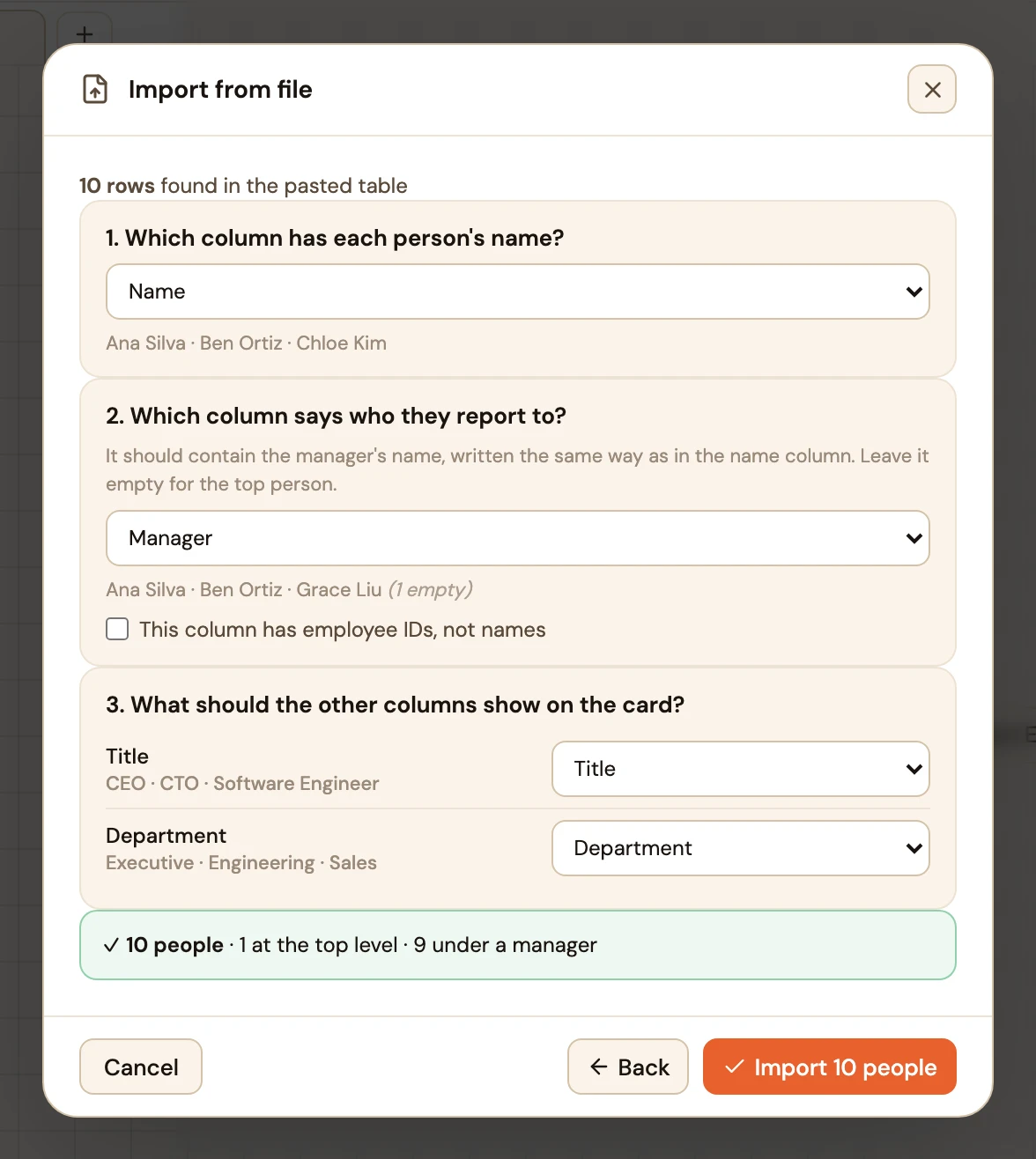
2. Paste it into SimplOrg. Open the editor, choose File → Import from file, and paste into the Paste from Excel or Google Sheets box. On an empty chart you can also click Import from Excel.
3. Check the two answers. SimplOrg reads the pasted table in your browser and guesses which column holds the names and which says who people report to. With the column names above it gets both right; the summary at the bottom tells you how many people were found and how many are connected to a manager.
4. Import. Click Import and the chart is drawn.
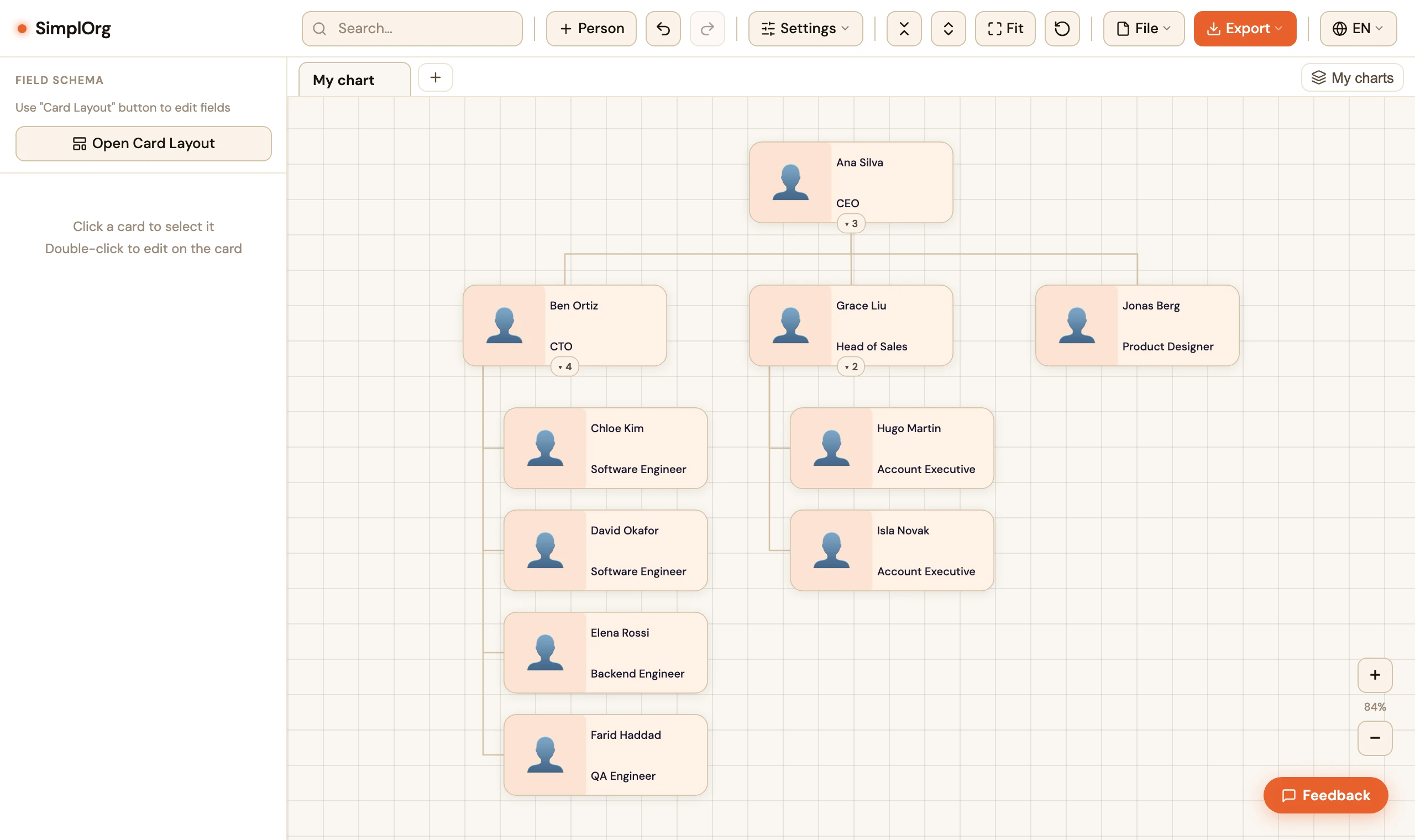
If the chart comes out flat, with everyone at the top, the manager names usually don't match the names exactly ("Ben" vs "Ben Ortiz"). Ask the assistant to fix the Manager column, or see When the chart comes out wrong in our Excel import guide, which uses the same importer.
Way 3: Start from Messy Notes
The table in Way 2 doesn't have to come from a clean list. Assistants are useful precisely when the information is scattered:
- A team page or email signature list: paste it and ask for the table.
- Meeting notes or a reorg announcement: "Here is the announcement. Build the table for the new structure."
- An HR export with extra columns: "Keep only name, job title, department and manager name."
- Two lists that need merging: "List A has names and titles, list B has names and managers. Combine them."
Always read the result before importing. An assistant can guess a manager that isn't in your text; it is quicker to correct one row in the table than to find the mistake on the chart later. Then paste it into SimplOrg as in Way 2, or send it straight to the connector from Way 1.
Why Not Just Ask for a Picture or a Diagram?
You can, and for a quick sketch it is fine. For a chart you will share and update, both shortcuts have limits:
- Generated images are pictures. You can't fix a misspelled name, move a person or add a new hire without generating the whole image again, and the next version may not look like the last one.
- Diagram code (such as Mermaid) is editable text, but you need somewhere to render it, and the layout is decided for you. Larger teams quickly become wide and hard to read, and adding photos or company colors is not straightforward.
An org chart editor keeps the people as data: you can drag cards, collapse teams, change the card design and export a clean PNG, SVG or PDF whenever something changes.
After the Chart Is Made
- Edit on the canvas. Double-click a card to edit it. Drag a card onto a new manager to move that person and their whole team.
- Add dotted-line managers for people who report to two managers (matrix reporting).
- Change what the cards show. Card Layout controls the fields; the Department column you pasted can be added to the card there. Photos or emoji can be added per person.
- Export or share. PNG, SVG or PDF for slides and documents, or a read-only share link.
- Keep an editable copy. File → Save (JSON) saves the chart with all its settings.
Privacy
With the connector, SimplOrg receives only the chart data the assistant sends: names, titles, departments and reporting lines. It never sees your conversation. With a pasted table, SimplOrg reads the table in your browser; nothing is sent to a server unless you choose to share a link. What you type into the assistant itself is covered by that assistant's own policies. Details are in our Privacy Policy.
Frequently Asked Questions
Can ChatGPT make an org chart?
ChatGPT can work out the structure (who reports to whom) from a description or a list. To get a chart you can edit, connect it to SimplOrg or ask it for a table and paste the table into SimplOrg.
Is this free?
Yes. The SimplOrg editor and the connector are free, and no account or API key is needed. The connector in ChatGPT requires Developer mode, which is available on paid plans; the paste method works with any plan.
Which assistants work with the connector?
Any assistant that supports remote MCP servers over Streamable HTTP, including Claude (web, desktop and Claude Code) and ChatGPT with Developer mode. Setup steps are on the SimplOrg for Claude and ChatGPT page.
How long does a chart link from the assistant last?
30 days. Open it before then and save it as JSON, or create a share link in the editor, to keep it longer.
Can I start from an Excel file instead?
Yes. Import the file directly with File → Import from file; see How to Create an Org Chart from Excel or CSV. An assistant helps when the file needs cleaning first.
The Bottom Line
Use the assistant for the list and an org chart editor for the chart. If you use Claude or ChatGPT often, connect SimplOrg once and ask for charts in plain words. If not, ask for a Name / Title / Department / Manager table and paste it. Either way you end up with a chart you can edit, export and update, not a picture you have to regenerate.
Try it now: open SimplOrg. Free, no account.